React Performance Optimization: Code Splitting, Memoization & Bundle Size in 2026
React apps slow down in predictable ways: unnecessary re-renders, monolithic bundles that block paint, massive lists that freeze the main thread, and state updates that spike INP. This comprehensive guide gives you every major optimization technique — from the React Profiler to concurrent features — so you can ship fast React apps in 2026 without guesswork.
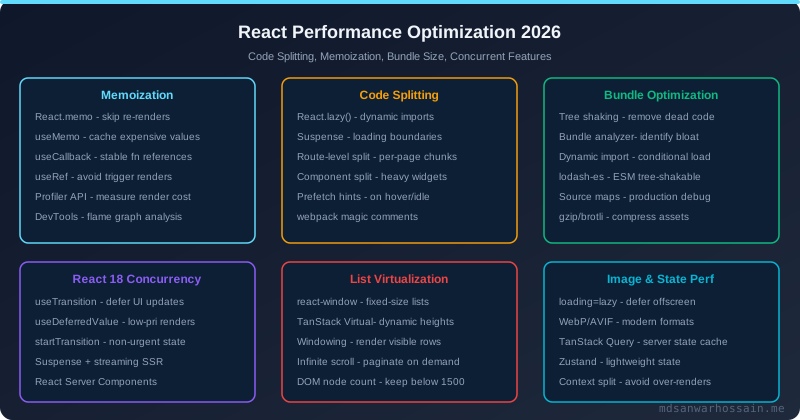
TL;DR — The Performance Rule in One Sentence
"Profile first with React DevTools Profiler & Chrome Performance tab, then eliminate unnecessary re-renders with memoization, reduce initial load with code splitting, and unblock the main thread with React 18 concurrent features — in that exact order."
Table of Contents
- Why React Performance Matters in 2026
- React Profiler & DevTools: Identifying Bottlenecks
- Component Memoization: React.memo, useMemo & useCallback
- Code Splitting with React.lazy & Suspense
- Bundle Size Optimization
- Virtual DOM Reconciliation & Key Prop Optimization
- React 18 Concurrent Features
- List Virtualization
- State Management Performance
- Image & Asset Optimization
- SSR, SSG & React Server Components
- Production Performance Checklist
1. Why React Performance Matters in 2026
Web performance has always mattered, but 2026 raises the stakes. Google's Interaction to Next Paint (INP) replaced FID as a Core Web Vital in 2024, meaning that every slow React re-render is now a ranking signal. Combine this with the proliferation of low-end Android devices and high-latency mobile connections, and the cost of a bloated, unoptimized React app is measurable in lost revenue.
The RAIL Model and Where React Fits
Google's RAIL model defines four performance goals: Response (handle user events in <100 ms), Animation (produce a frame every 16 ms for 60 fps), Idle (use idle time to pre-load), and Load (deliver and be interactive in <5 s on slow 3G). React performance failures map directly onto these four categories:
- Response failures: Event handlers that trigger deep re-renders, spiking INP above the 200 ms threshold.
- Animation failures: Synchronous state updates that block the paint thread, causing dropped frames during scroll or drag interactions.
- Idle failures: Missing prefetch and lazy-load opportunities, leaving bandwidth idle while users are reading.
- Load failures: Monolithic JavaScript bundles — the #1 cause of poor Time-to-Interactive in React SPAs.
Core Web Vitals Targets for React Apps
| Metric | Good | Needs Improvement | Primary React Cause |
|---|---|---|---|
| LCP (Largest Contentful Paint) | ≤ 2.5 s | 2.5 – 4 s | Large bundle, render-blocking scripts, unoptimized hero image |
| INP (Interaction to Next Paint) | ≤ 200 ms | 200 – 500 ms | Expensive re-renders, synchronous state cascades |
| CLS (Cumulative Layout Shift) | ≤ 0.1 | 0.1 – 0.25 | Missing image dimensions, late Suspense fallback swaps |
| TTI (Time to Interactive) | ≤ 3.8 s | 3.8 – 7.3 s | Monolithic bundle, no code splitting, heavy third-party scripts |
2. React Profiler & DevTools: Identifying Bottlenecks
The single most important rule in React performance optimization is: measure before you optimize. Blind memoization creates its own overhead and makes code harder to maintain. The React DevTools Profiler shows you exactly which components re-render, how long each render takes, and why it happened.
Using the React DevTools Profiler
Install the React DevTools browser extension, then open the Profiler tab. Click "Record", interact with your app, then stop recording. The flame chart shows render duration per component. Look for:
- Wide bars: Components that take more than 16 ms to render — they drop frames.
- Frequent re-renders: A component that re-renders many times per interaction, often from unstable prop references.
- "Why did this render?" panel: Enable "Record why each component rendered" in Profiler settings to see whether the cause was props, state, context, or a parent re-render.
- Commit waterfall: Long chains of dependent state updates that should be batched.
Programmatic Profiling with the Profiler API
For CI-level performance budgets, use React's built-in <Profiler> component to record render metrics programmatically:
import { Profiler } from 'react';

function onRenderCallback(id, phase, actualDuration) {
  // Send to your observability platform
  if (actualDuration > 16) {
    analytics.track('slow_render', { component: id, phase, ms: actualDuration });
  }
}

export function ProfiledProductList() {
  return (
    <Profiler id="ProductList" onRender={onRenderCallback}>
      <ProductList />
    </Profiler>
  );
}
Chrome Performance Tab for INP Analysis
For INP analysis, open Chrome DevTools → Performance tab → record an interaction. Look for Long Tasks (red triangles on the main thread) that block input processing. The "Interactions" lane shows which user events triggered which tasks. Filter by "React" in the flame chart to isolate React's reconciliation cost from third-party scripts.
3. Component Memoization: React.memo, useMemo & useCallback
Memoization is React's mechanism for skipping unnecessary re-renders by caching the result of expensive computations and component outputs. There are three tools, each with distinct use cases — and distinct costs when misused.
React.memo — Memoizing Component Output
React.memo is a Higher-Order Component that wraps a functional component and skips re-rendering if its props are shallowly equal to the previous render's props. It is the correct tool when a pure child component is re-rendering because of parent state changes that don't affect it.
// WITHOUT memo: re-renders on every parent update, even if product didn't change
function ProductCard({ product, onAddToCart }) {
  return <div onClick={() => onAddToCart(product.id)}>{product.name}</div>;
}

// WITH memo: skips re-render if product and onAddToCart reference are stable
const ProductCard = React.memo(function ProductCard({ product, onAddToCart }) {
  return <div onClick={() => onAddToCart(product.id)}>{product.name}</div>;
});

// Custom comparison for deep equality on specific props:
const ProductCard = React.memo(ProductCardComponent, (prev, next) =>
  prev.product.id === next.product.id && prev.product.price === next.product.price
);
When NOT to use React.memo: Don't wrap every component. The comparison itself has a cost. Skip React.memo when: (1) the component is cheap to render, (2) props change on nearly every render anyway, or (3) the component consumes context that updates frequently.
useMemo — Memoizing Computed Values
useMemo caches the result of an expensive computation between renders. Use it only when the computation is measurably slow (complex filters, sorts, data transformations) or when you need referential stability for an object/array passed as a prop to a memoized child.
// Expensive filter + sort over thousands of products
const filteredProducts = useMemo(() => {
  return products
    .filter(p => p.category === selectedCategory && p.price <= maxPrice)
    .sort((a, b) => b.rating - a.rating);
}, [products, selectedCategory, maxPrice]);

// Referential stability for memoized child
const chartConfig = useMemo(() => ({
  labels: data.map(d => d.label),
  datasets: [{ data: data.map(d => d.value) }]
}), [data]);
useCallback — Memoizing Functions
useCallback returns a memoized function reference. Every time a parent re-renders, inline functions (like () => doSomething(id)) are recreated as new references, which breaks React.memo on child components. useCallback solves this.
function ProductList({ products }) {
  const [cart, setCart] = useState([]);

  // Without useCallback: new reference on every render, breaking ProductCard memo
  // const handleAddToCart = (id) => setCart(prev => [...prev, id]);

  // With useCallback: stable reference, ProductCard.memo works correctly
  const handleAddToCart = useCallback((id) => {
    setCart(prev => [...prev, id]);
  }, []); // stable: setCart itself is stable

  return products.map(p =>
    <ProductCard key={p.id} product={p} onAddToCart={handleAddToCart} />
  );
}| Tool | What it memoizes | Use when | Skip when |
|---|---|---|---|
React.memo |
Entire component output | Pure child with stable props, renders in large list | Cheap render, props always change |
useMemo |
Computed value / object | Expensive computation, referential stability needed | Simple arithmetic, primitive deps change every render |
useCallback |
Function reference | Passed to memoized child, used in useEffect deps | Function not passed as prop, component not memoized |
4. Code Splitting with React.lazy & Suspense
Code splitting is the most impactful optimization for initial load performance. Instead of shipping one giant JavaScript bundle, you split it into smaller chunks that load on demand. React provides React.lazy and Suspense for first-class lazy loading of components.
Route-Level Code Splitting
The highest-leverage split point is at the route level. Users loading the home page should never download the dashboard, settings, or admin panel JavaScript. With React Router v6 and React.lazy, this is straightforward:
import { lazy, Suspense } from 'react';
import { BrowserRouter, Routes, Route } from 'react-router-dom';

// Each route becomes a separate chunk
const Home = lazy(() => import('./pages/Home'));
const Dashboard = lazy(() => import('./pages/Dashboard'));
const AdminPanel = lazy(() => import('./pages/AdminPanel'));

function App() {
  return (
    <BrowserRouter>
      <Suspense fallback={<PageSkeleton />}>
        <Routes>
          <Route path="/" element={<Home />} />
          <Route path="/dashboard" element={<Dashboard />} />
          <Route path="/admin" element={<AdminPanel />} />
        </Routes>
      </Suspense>
    </BrowserRouter>
  );
}
Component-Level Code Splitting
Split heavy components that aren't needed immediately — modals, rich text editors, charts, PDF viewers. The golden rule: if a component is only visible after a user action, lazy-load it.
const ChartComponent = lazy(() => import('./components/ChartComponent'));
const RichTextEditor = lazy(() => import('./components/RichTextEditor'));
const PDFViewer = lazy(() => import('./components/PDFViewer'));

// Granular Suspense boundaries for better UX
function ReportPage() {
  const [showChart, setShowChart] = useState(false);
  return (
    <div>
      <ReportSummary />
      {showChart && (
        <Suspense fallback={<ChartSkeleton />}>
          <ChartComponent />
        </Suspense>
      )}
      <button onClick={() => setShowChart(true)}>View Chart</button>
    </div>
  );
}
Prefetching for Perceived Speed
Lazy loading avoids downloading chunks upfront, but can cause a visible delay when the user navigates. Prefetching bridges this gap by downloading the chunk during browser idle time before the user navigates:
// Prefetch on hover — user likely to click
function NavLink({ to, label, importFn }) {
  return (
    <Link
      to={to}
      onMouseEnter={() => importFn()} // trigger chunk download on hover
    >
      {label}
    </Link>
  );
}

// Usage
<NavLink to="/dashboard" label="Dashboard" importFn={() => import('./pages/Dashboard')} />
5. Bundle Size Optimization
Even with code splitting, individual chunks can be too large. Bundle size optimization targets the content of each chunk: removing dead code, replacing heavy libraries, and ensuring tree shaking works correctly.
Analyzing Your Bundle with webpack-bundle-analyzer
You cannot optimize what you cannot see. Install webpack-bundle-analyzer and generate a visual treemap of your bundle:
# For Create React App (eject or use CRACO)
npm install --save-dev webpack-bundle-analyzer

# For Vite projects
npm install --save-dev rollup-plugin-visualizer

# vite.config.ts
import { visualizer } from 'rollup-plugin-visualizer';
export default { plugins: [visualizer({ open: true, gzipSize: true })] };
Common findings from bundle analysis and their fixes:
- Moment.js (330 kB): Replace with
date-fns(tree-shakeable) ordayjs(2 kB). Save 300+ kB gzipped. - Lodash full import: Use
import debounce from 'lodash/debounce'or switch tolodash-esfor proper tree shaking. - Material UI full import: Always use named imports (
import Button from '@mui/material/Button') not barrel imports. - Duplicate dependencies: Multiple versions of the same library pulled in by different packages — check with
npm dedupe. - Large icons libraries: Import only the icons you use. Never
import * from 'react-icons'.
Tree Shaking: Making It Work
Tree shaking eliminates unused exports from your bundle. Vite and webpack 5 support it natively for ES modules, but several patterns break it:
// ❌ Barrel import — defeats tree shaking:
import { Button, TextField, Dialog } from '@mui/material';

// ✅ Direct import — tree shakes correctly:
import Button from '@mui/material/Button';
import TextField from '@mui/material/TextField';

// ❌ CommonJS require — not tree-shakeable:
const _ = require('lodash');

// ✅ ES module named import — tree-shakeable:
import { debounce, throttle } from 'lodash-es';
Dynamic Imports for Conditional Code
Use dynamic import() to load heavy utilities only when actually needed — for example, a PDF export library only loaded when the user clicks "Export":
async function handleExportPDF(data) {
  // jsPDF is ~300kB — only load it when the user actually clicks export
  const { jsPDF } = await import('jspdf');
  const doc = new jsPDF();
  doc.text(data.title, 10, 10);
  doc.save('report.pdf');
}
6. Virtual DOM Reconciliation & Key Prop Optimization
React's reconciliation algorithm (the "diffing" algorithm) compares the new virtual DOM tree with the previous one to determine the minimal set of DOM mutations needed. Understanding how it works lets you write component structures that give the algorithm the best chance to optimize.
How React's Reconciliation Algorithm Works
React's diffing has two key heuristics:
- Same element type assumption: If a node changes type (e.g.,
<div>to<span>), React destroys the entire subtree and rebuilds it. This means conditionally switching wrapper element types is expensive. - Key-based list reconciliation: For lists, React uses the
keyprop to match elements between renders. Without keys, React performs O(n) destructive re-renders on list mutations.
The Key Prop: Rules and Common Mistakes
// ❌ Index as key: sorting/filtering causes full re-render + state corruption
{products.map((p, index) => <ProductCard key={index} product={p} />)}

// ✅ Stable unique ID as key: React reuses DOM nodes correctly
{products.map(p => <ProductCard key={p.id} product={p} />)}

// ✅ Using key to force reset of component state on prop change:
// Mounting a new component when userId changes (resets all internal state)
<UserProfile key={userId} userId={userId} />
Avoiding Subtree Re-Creation
Avoid defining components inside other component render functions. Every render creates a new function reference, causing React to treat it as a new element type and unmount/remount the entire subtree:
// ❌ Component defined inside render — remounts on every parent render
function ParentComponent() {
  function InlineChild() { return <div>Hello</div>; }
  return <InlineChild />;
}

// ✅ Component defined outside — stable reference, no unnecessary remounts
function ChildComponent() { return <div>Hello</div>; }
function ParentComponent() { return <ChildComponent />; }
7. React 18 Concurrent Features
React 18 introduced the concurrent renderer, which allows React to pause, interrupt, and resume rendering — making it possible to keep the UI responsive even during expensive state updates. This is the most significant performance architecture change since React's creation.
useTransition — Mark Updates as Non-Urgent
useTransition lets you tell React that a state update is "non-urgent". React will render it in the background, keeping the UI responsive for urgent interactions (like typing) while the transition renders.
import { useState, useTransition } from 'react';

function SearchPage() {
  const [query, setQuery] = useState('');
  const [results, setResults] = useState([]);
  const [isPending, startTransition] = useTransition();

  function handleSearch(e) {
    const value = e.target.value;
    setQuery(value); // urgent: input reflects immediately

    startTransition(() => {
      // non-urgent: heavy search/filter can be interrupted
      setResults(searchProducts(value));
    });
  }

  return (
    <div>
      <input value={query} onChange={handleSearch} placeholder="Search..." />
      {isPending && <span>Searching...</span>}
      <ResultsList results={results} />
    </div>
  );
}
useDeferredValue — Deferred Rendering of Derived Data
useDeferredValue creates a deferred version of a value. The deferred value lags behind the actual value during high-priority updates, preventing expensive child re-renders from blocking urgent UI updates. It's the hook equivalent of startTransition for scenarios where you don't control the state update:
import { useDeferredValue, memo } from 'react';

function SearchResults({ query }) {
  // deferredQuery lags behind query during typing — prevents expensive re-renders
  const deferredQuery = useDeferredValue(query);
  const isStale = query !== deferredQuery;

  return (
    <div style={{ opacity: isStale ? 0.7 : 1 }}>
      {/* ExpensiveList re-renders with deferredQuery, not the live query */}
      <ExpensiveList query={deferredQuery} />
    </div>
  );
}

// Wrap in memo so it only re-renders when deferredQuery actually changes
const ExpensiveList = memo(({ query }) => {
  const items = filterItems(query); // expensive operation
  return items.map(item => <Item key={item.id} {...item} />);
});
Automatic Batching in React 18
React 18 extends automatic batching to all state updates — including those in async functions, setTimeout, and native event handlers. Previously, only React synthetic event handlers were batched. This alone reduces re-renders significantly without any code changes when upgrading to React 18:
// React 17: two separate re-renders in setTimeout
// React 18: automatically batched into ONE re-render
setTimeout(() => {
  setCount(c => c + 1);
  setFlag(f => !f);
  // React 18 renders ONCE here, not twice
}, 1000);

// If you ever need to opt out of batching (rare):
import { flushSync } from 'react-dom';
flushSync(() => setCount(c => c + 1)); // forces immediate re-render
flushSync(() => setFlag(f => !f)); // second immediate re-render| Feature | Hook / API | Problem Solved | Best Use Case |
|---|---|---|---|
| Transitions | useTransition |
Blocks UI during heavy state updates | Search, tab switching, filter changes |
| Deferred values | useDeferredValue |
Expensive child re-renders from prop | Live search results, derived lists |
| Auto batching | Automatic (React 18) | Multiple setState causing multiple renders | All async handlers, setTimeout, fetch |
| Streaming SSR | renderToPipeableStream |
Blocking TTFB waiting for full SSR | Large pages with async data sections |
8. List Virtualization
Rendering 10,000 rows means 10,000 DOM nodes. Even with memoization, this overwhelms the browser. Virtualization (windowing) renders only the rows visible in the viewport, typically 20–50 items, keeping DOM node count constant regardless of data size.
react-window (Lightweight, Stable)
import { FixedSizeList } from 'react-window';

const Row = ({ index, style, data }) => (
  <div style={style}>
    <ProductCard product={data[index]} />
  </div>
);

function ProductVirtualList({ products }) {
  return (
    <FixedSizeList
      height={600}
      itemCount={products.length}
      itemSize={80}
      itemData={products}
      width="100%"
    >
      {Row}
    </FixedSizeList>
  );
}
TanStack Virtual (Modern, Framework-Agnostic)
TanStack Virtual (v3) is the 2026 default for complex virtualization needs — it supports variable item sizes, horizontal virtualization, and grid layouts with a headless, CSS-in-JS-friendly API:
import { useVirtualizer } from '@tanstack/react-virtual';

function VirtualProductList({ products }) {
  const parentRef = useRef(null);

  const virtualizer = useVirtualizer({
    count: products.length,
    getScrollElement: () => parentRef.current,
    estimateSize: () => 80,         // estimated row height
    overscan: 5,                    // render 5 rows beyond viewport
  });

  return (
    <div ref={parentRef} style={{ height: '600px', overflow: 'auto' }}>
      <div style={{ height: virtualizer.getTotalSize(), position: 'relative' }}>
        {virtualizer.getVirtualItems().map(item => (
          <div
            key={item.key}
            style={{ position: 'absolute', top: item.start, width: '100%' }}
          >
            <ProductCard product={products[item.index]} />
          </div>
        ))}
      </div>
    </div>
  );
}
Virtualization benchmarks for a 10,000-item list on a mid-range device:
| Approach | Initial Render | Scroll Frame Time | DOM Nodes |
|---|---|---|---|
| No virtualization | ~4200 ms | ~90 ms (drops frames) | ~50,000 |
| react-window | ~18 ms | ~12 ms (smooth) | ~300 |
| TanStack Virtual | ~16 ms | ~10 ms (smooth) | ~300 |
9. State Management Performance
The choice of state management library and the way you structure your state have a direct impact on how many components re-render. Every state update triggers a re-render in every component that subscribes to that state — choosing the right granularity is critical at scale.
useState vs useReducer
useState is ideal for independent, simple state values. useReducer performs better when multiple sub-values are updated together, preventing intermediate invalid states and reducing the number of re-renders from sequential setState calls that are hard to batch:
// ❌ Multiple useState calls that trigger multiple re-renders
const [loading, setLoading] = useState(false);
const [data, setData] = useState(null);
const [error, setError] = useState(null);

// ✅ useReducer: atomically transitions state — one re-render per action
const [state, dispatch] = useReducer(fetchReducer, {
  loading: false, data: null, error: null
});

// In fetch handler:
dispatch({ type: 'FETCH_START' });
try {
  const data = await fetchProducts();
  dispatch({ type: 'FETCH_SUCCESS', payload: data });
} catch (e) {
  dispatch({ type: 'FETCH_ERROR', error: e.message });
}
Context API — The Re-Render Trap
React Context re-renders every consumer when the context value changes, even if the consumer only uses one field. Fix this by splitting context by domain and memoizing context values:
// ❌ Single context — any update re-renders all consumers
const AppContext = createContext({ user, theme, cart, notifications });

// ✅ Split contexts by update frequency
const UserContext = createContext(null);      // rarely changes
const ThemeContext = createContext('light');  // changes on toggle
const CartContext = createContext([]);        // changes frequently

// Memoize context value to prevent referential churn
function CartProvider({ children }) {
  const [cart, dispatch] = useReducer(cartReducer, []);
  const value = useMemo(() => ({ cart, dispatch }), [cart]);
  return <CartContext.Provider value={value}>{children}</CartContext.Provider>;
}
Zustand — Fine-Grained Subscriptions
Zustand is the 2026 state management library of choice for performance-sensitive applications. Unlike Context, Zustand re-renders only the components that subscribe to the specific slice of state that changed:
import { create } from 'zustand';

const useCartStore = create((set) => ({
  items: [],
  total: 0,
  addItem: (item) => set((state) => ({
    items: [...state.items, item],
    total: state.total + item.price
  })),
}));

// This component ONLY re-renders when items.length changes
function CartIcon() {
  const count = useCartStore(state => state.items.length);
  return <span>{count}</span>;
}

// This component ONLY re-renders when total changes
function CartTotal() {
  const total = useCartStore(state => state.total);
  return <span>${total.toFixed(2)}</span>;
}
TanStack Query — Server State Performance
TanStack Query (React Query) eliminates the most common performance anti-pattern in React apps: fetching data in useEffect with manual loading/error state management. It provides automatic caching, background refetching, deduplication of parallel requests, and structural sharing to minimize re-renders:
import { useQuery } from '@tanstack/react-query';

// Multiple components calling this hook share one request
function useProducts(category) {
  return useQuery({
    queryKey: ['products', category],
    queryFn: () => fetchProducts(category),
    staleTime: 5 * 60 * 1000, // treat data as fresh for 5 minutes
    select: (data) => data.filter(p => p.inStock), // transform before re-render
  });
}

// Prefetch on hover for instant navigation
const queryClient = useQueryClient();
function prefetchCategory(category) {
  queryClient.prefetchQuery({
    queryKey: ['products', category],
    queryFn: () => fetchProducts(category),
  });
}
10. Image & Asset Optimization in React Apps
Images account for 50–70% of total page weight in most web apps. Unoptimized images are the leading cause of poor LCP scores. In 2026, React applications should treat image optimization as a first-class concern.
Native Lazy Loading and Explicit Dimensions
Always use loading="lazy" for below-the-fold images and loading="eager" for LCP images. Always specify width and height to prevent layout shift (CLS):
// ❌ Missing dimensions and loading attribute
<img src={product.imageUrl} alt={product.name} />

// ✅ Complete with dimensions, loading, decoding, and modern format
<picture>
  <source srcSet={`${product.imageUrl}?format=webp`} type="image/webp" />
  <img
    src={product.imageUrl}
    alt={product.name}
    width={400}
    height={300}
    loading="lazy"
    decoding="async"
    style={{ aspectRatio: '4/3', objectFit: 'cover' }}
  />
</picture>
Responsive Images with srcSet
// Ship the right image size for the device viewport
function ResponsiveProductImage({ product }) {
  return (
    <img
      src={`${product.imageUrl}?w=400`}
      srcSet={`
        ${product.imageUrl}?w=400 400w,
        ${product.imageUrl}?w=800 800w,
        ${product.imageUrl}?w=1200 1200w
      `}
      sizes="(max-width: 640px) 100vw, (max-width: 1024px) 50vw, 400px"
      alt={product.name}
      width={400}
      height={300}
      loading="lazy"
    />
  );
}
Font Optimization
- Use
font-display: swapto prevent invisible text during font load. - Subset fonts to include only characters you use. Google Fonts supports this via
&subset=latin. - Preload critical fonts with
<link rel="preload" as="font" crossorigin>. - Self-host fonts to eliminate DNS lookups to Google's servers.
- Use variable fonts to replace multiple font-weight files with a single file.
11. SSR, SSG & React Server Components Performance Impact
The rendering strategy you choose fundamentally determines the performance ceiling of your React application. In 2026, the choice has expanded significantly with React Server Components (RSC) in Next.js 14+.
SSR vs SSG vs ISR vs CSR — When to Use Each
| Strategy | TTFB | LCP | Best For |
|---|---|---|---|
| CSR (Client-Side Rendering) | Fast | Slow (JS executes first) | Auth-gated dashboards, apps behind login |
| SSG (Static Site Generation) | Fastest (CDN) | Fastest | Blog, marketing, docs — content rarely changes |
| ISR (Incremental Static Regen) | Fastest (CDN) | Fastest | E-commerce product pages, news articles |
| SSR (Server-Side Rendering) | Slower | Fast | Real-time data, personalized pages, SEO-critical |
React Server Components (RSC) — Zero Bundle Cost
React Server Components execute exclusively on the server. Their JavaScript is never shipped to the client. This is the most powerful bundle-size optimization available in 2026 for Next.js apps — database queries, heavy data transformations, and large library usage in Server Components add zero bytes to the client bundle:
// app/products/page.tsx — Server Component (default in Next.js 14+)
// This entire component runs on the server — zero client JS for the DB query
import { db } from '@/lib/db';

export default async function ProductsPage() {
  // Direct database query — no API route needed, no client-side fetch
  const products = await db.product.findMany({
    where: { inStock: true },
    orderBy: { rating: 'desc' },
    take: 50,
  });

  return (
    <div>
      <h1>Products</h1>
      {products.map(p => (
        <ProductCard key={p.id} product={p} /> // can be Server Component too
      ))}
    </div>
  );
}

// 'use client' — only for components needing interactivity
'use client';
function AddToCartButton({ productId }) {
  const [added, setAdded] = useState(false);
  return <button onClick={() => setAdded(true)}>{added ? '✓ Added' : 'Add to Cart'}</button>;
}
Streaming SSR with Suspense
With React 18 streaming SSR, the server sends the initial HTML shell immediately, then streams in deferred sections as their data resolves. This improves TTFB and Time-to-Interactive for pages with multiple async data sources:
// Next.js 14 — instant shell, streamed sections
export default function DashboardPage() {
  return (
    <div>
      <DashboardHeader /> {/* renders immediately */}
      <Suspense fallback={<MetricsSkeleton />}>
        <MetricsSection /> {/* streams in when metrics query resolves */}
      </Suspense>
      <Suspense fallback={<ChartSkeleton />}>
        <RevenueChart /> {/* streams in independently */}
      </Suspense>
    </div>
  );
}
12. Production Performance Checklist
Use this checklist before every major release. Each item addresses a specific, measurable performance issue that commonly affects React applications in production.
Profiling & Measurement
- ☐ Run React DevTools Profiler on critical user flows — flag any render >16 ms
- ☐ Measure INP on representative hardware (mid-range Android device)
- ☐ Run Lighthouse in incognito mode — target Performance score ≥90
- ☐ Set up Real User Monitoring (RUM) with Core Web Vitals reporting
- ☐ Add performance budgets to CI (bundle size, Lighthouse score)
Bundle & Loading
- ☐ Route-level code splitting implemented — no route >150 kB gzipped
- ☐ webpack-bundle-analyzer / Vite visualizer run — no surprise large modules
- ☐ Lodash, moment.js, and other heavy libraries replaced or tree-shaken
- ☐ Dynamic imports for modals, charts, PDF exports, and other conditional features
- ☐ Prefetching configured for likely next navigation targets
- ☐
sideEffects: falseset inpackage.jsonfor proper tree shaking
Re-Render Optimization
- ☐ List items wrapped in
React.memowith stable unique keys - ☐ All callback props passed to memoized children wrapped in
useCallback - ☐ Expensive computations wrapped in
useMemo - ☐ Context split by update frequency — no single monolithic AppContext
- ☐ No component definitions inside render functions
- ☐ Array index never used as list key where items can reorder
Images & Assets
- ☐ All images have explicit
widthandheightattributes (zero CLS) - ☐ LCP image uses
loading="eager"andfetchpriority="high" - ☐ All below-fold images use
loading="lazy" - ☐ WebP / AVIF format served with
<picture>fallbacks - ☐ Fonts preloaded, self-hosted, and use
font-display: swap - ☐ SVGs inlined or sprite-based — not individual HTTP requests
Rendering Strategy & Concurrent Features
- ☐ React 18 concurrent mode enabled (
createRootused, notrender) - ☐ Heavy filter/search updates wrapped in
startTransition - ☐ Lists with 100+ items use
react-windowor TanStack Virtual - ☐ SSG used for all static pages; ISR for semi-static content
- ☐ React Server Components used for data-fetching in Next.js 14+ apps
- ☐ Suspense boundaries placed at meaningful granularity (not wrapping entire page)
React performance optimization in 2026 is a discipline of measurement, precision, and restraint. Start with the Profiler to identify real bottlenecks. Apply memoization and code splitting with surgical precision. Leverage React 18's concurrent features for genuine UX improvements. And remember: the fastest code is code that doesn't run — which is why Server Components and static generation remain the most impactful optimizations of all.