Advanced Git: Interactive Rebase, Cherry-Pick & Bisect — Complete Guide 2026
Most developers know the basics of git commit, git push, and git merge. But the engineers who maintain clean, debuggable repositories and diagnose production regressions in minutes are the ones who have mastered interactive rebase, cherry-pick, bisect, and the reflog. This guide covers every advanced Git workflow you need for professional software development in 2026.
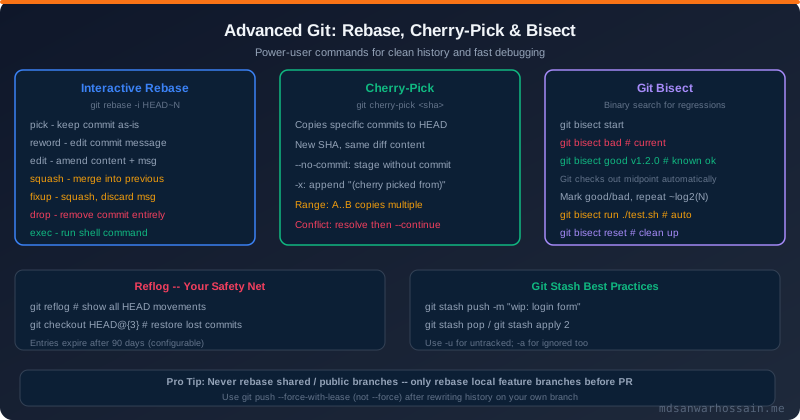
TL;DR — The Three Most Impactful Advanced Commands
"Interactive rebase keeps your PR history clean and reviewable. Cherry-pick lets you port critical hotfixes across release branches without merging entire histories. Bisect finds the exact commit that broke production in O(log n) steps instead of hours of guessing. Learn all three and you will debug faster than 90% of your peers."
Table of Contents
- Interactive Rebase: Full Command Reference
- Rebase Workflow: PR Preparation & Conflict Resolution
- Git Cherry-Pick: Porting Commits Across Branches
- Git Bisect: Binary Search for Regressions
- The Reflog: Recovering from Destructive Operations
- Git Stash: Context Switching Without Commits
- Git Worktree: Multiple Working Directories
- Rebase vs Merge: When to Use Each
- Advanced git log: Searching History Like a Pro
- Safety Rules: What Never to Rewrite
1. Interactive Rebase: Full Command Reference
Interactive rebase (git rebase -i) opens an editor showing the last N commits, each prefixed by an action keyword. You can reorder lines, change keywords, and save to transform your history.
# Open interactive rebase for last 5 commits:
$ git rebase -i HEAD~5

# Rebase onto the main branch (common PR workflow):
$ git rebase -i main

# The editor shows (oldest first, newest last):
pick a1b2c3d feat: add user authentication
pick d4e5f6a fix: handle null user edge case
pick 7g8h9i0 WIP: working on password reset
pick j1k2l3m chore: fix typo in comment
pick n4o5p6q feat: complete password reset flow
Every Action Keyword Explained
| Keyword (short) | What It Does | When to Use |
|---|---|---|
| pick (p) | Keep commit unchanged | Default; keep as-is |
| reword (r) | Keep diff, edit message | Fix typos, add issue refs |
| edit (e) | Pause at commit for amendment | Split a commit into multiple |
| squash (s) | Merge into previous, combine messages | Combine WIP commits before PR |
| fixup (f) | Merge into previous, discard message | Small corrections to previous commit |
| drop (d) | Delete commit entirely | Remove debug/test-only commits |
| exec (x) | Run shell command at this point | Run tests after each commit |
| break (b) | Pause execution here | Manual inspection mid-rebase |
Splitting a Commit
Use edit to pause at a commit and split it into two or more commits:
# 1. Mark the commit as "edit" in the interactive rebase
# After git opens the editor, change "pick" to "edit":
edit 7g8h9i0 big messy commit: auth + payment + UI

# 2. Git pauses at that commit. Reset it (unstage changes):
$ git reset HEAD~1

# 3. Now stage and commit in logical chunks:
$ git add src/auth/
$ git commit -m "feat(auth): implement JWT authentication"

$ git add src/payment/
$ git commit -m "feat(payment): add Stripe webhook handler"

$ git add src/ui/
$ git commit -m "feat(ui): add login/logout buttons"

# 4. Continue the rebase:
$ git rebase --continue
2. Rebase Workflow: PR Preparation & Conflict Resolution
The most common use of interactive rebase is preparing a feature branch for a clean PR. A typical workflow on a long-running branch:
# Fetch latest main:
$ git fetch origin main

# Rebase feature branch onto current main:
$ git rebase origin/main

# If main has changed since your branch diverged,
# Git replays each of your commits onto the new main tip.
# Conflicts arise when the same lines changed in both.

# Resolving conflicts during rebase:
# 1. Open conflicted files, resolve markers
# 2. Stage resolved files:
$ git add src/conflicted-file.java

# 3. Continue (do NOT use git commit):
$ git rebase --continue

# To abort and return to pre-rebase state:
$ git rebase --abort

# After clean rebase, force-push your branch:
$ git push --force-with-lease origin feature/login
# --force-with-lease is safer: fails if someone else pushed
Autosquash: Fixing Previous Commits Automatically
The --autosquash flag combined with specially-named commits is a powerful pattern for clean PRs:
# While working on a feature, create a fixup commit:
$ git commit --fixup=HEAD~2   # fixes commit 2 back
# or name it explicitly:
$ git commit -m "fixup! feat: add user authentication"

# Later, clean up with autosquash:
$ git rebase -i --autosquash HEAD~10
# Git automatically places fixup commits next to their targets!

# Make this the default behavior:
$ git config --global rebase.autoSquash true3. Git Cherry-Pick: Porting Commits Across Branches
Cherry-pick copies one or more commits from any branch and applies them to the current branch as new commits. The original commits remain unchanged. Cherry-pick is the correct tool for backporting hotfixes to release branches without merging unrelated feature work.
Core Cherry-Pick Scenarios
# Pick a single commit:
$ git cherry-pick abc1234

# Pick a range of commits (A is exclusive, B inclusive):
$ git cherry-pick A..B
$ git cherry-pick A^..B   # include A itself

# Pick multiple non-contiguous commits:
$ git cherry-pick abc1234 def5678 ghi9012

# Cherry-pick without committing (stage only):
$ git cherry-pick --no-commit abc1234
# Useful when you want to combine multiple cherry-picks into one commit

# Add provenance note to commit message (-x flag):
$ git cherry-pick -x abc1234
# Appends: "(cherry picked from commit abc1234)"
# Always use -x for backports — invaluable for audit trails

# Cherry-pick a merge commit (pick one parent's changes):
$ git cherry-pick -m 1 abc1234  # -m 1: use first parent as mainline
Backport Hotfix Workflow
The canonical cherry-pick use case: a critical security fix merged to main must be backported to the current release branch:
# 1. Find the security fix SHA on main:
$ git log main --oneline | grep "CVE-2026"
abc1234 fix(security): patch SQL injection in UserRepository (CVE-2026-1234)

# 2. Check out the release branch:
$ git checkout release/v2.1

# 3. Cherry-pick the fix:
$ git cherry-pick -x abc1234

# 4. If conflicts (release branch differs from main):
$ git status        # see conflicted files
# ... resolve conflicts ...
$ git add .
$ git cherry-pick --continue

# 5. Push to release branch:
$ git push origin release/v2.1

# 6. Tag the patch release:
$ git tag -a v2.1.1 -m "Patch release: CVE-2026-1234 fix"
$ git push origin v2.1.1
When NOT to Cherry-Pick
Cherry-pick creates a new commit with a different SHA than the original, duplicating history. Avoid cherry-pick when:
- The change depends on other commits you haven't ported — you will get conflicts or broken state
- You want to merge an entire feature — use a proper merge or rebase instead
- The same commits will eventually be merged anyway — you will create duplicate commits in history
- You're picking from a branch you haven't reviewed — security risk if the source branch is compromised
4. Git Bisect: Binary Search for Regressions
git bisect performs a binary search through commit history to find the exact commit that introduced a regression. With 1,000 commits to search, bisect finds the culprit in at most 10 steps. Manual testing each commit would take hours; automated bisect can complete in under a minute.
Manual Bisect Workflow
# Start bisect session:
$ git bisect start

# Mark current HEAD as bad (has the regression):
$ git bisect bad

# Mark a known-good commit (e.g., a release tag):
$ git bisect good v2.0.0

# Git checks out the midpoint commit automatically.
# Test it manually, then mark it:
$ git bisect bad   # or:
$ git bisect good

# Repeat until Git shows:
# "abc1234 is the first bad commit"
# commit abc1234
# Author: Jane Smith ...
# Date:   Mon Apr 7 2026
#     feat(cache): add Redis caching to ProductService

# Always clean up when done:
$ git bisect reset
Automated Bisect with a Test Script
The most powerful feature of bisect: fully automated search with git bisect run. The script must exit 0 for good, non-zero for bad:
#!/bin/bash
# bisect-test.sh — returns 0 if good, 1 if bad

# Build the project at this commit:
mvn compile -q 2>/dev/null || exit 125  # exit 125 = skip untestable commit

# Run the specific failing test:
mvn test -pl order-service -Dtest=OrderServiceIT#testPaymentProcessing \
  -q 2>/dev/null
exit $?

# Run automated bisect:
$ git bisect start
$ git bisect bad HEAD
$ git bisect good v2.0.0
$ git bisect run ./bisect-test.sh
# Git runs the script at each midpoint automatically.
# "abc1234 is the first bad commit" — done in seconds!

$ git bisect reset  # always reset when done
Bisect Skip: Handling Untestable Commits
Some commits in a range may not compile or may have broken tests unrelated to your regression. Use git bisect skip or return exit code 125 from your test script to skip them. Git will skip to the nearest testable commit. If too many commits are skipped, bisect warns that the first bad commit might be within the skipped range.
# Skip a commit that doesn't compile:
$ git bisect skip

# Skip a range of commits you know are unrelated:
$ git bisect skip v2.1.0..v2.1.3

# View the bisect log (useful for auditing):
$ git bisect log

# Replay a bisect session from a log file:
$ git bisect replay bisect.log
5. The Reflog: Recovering from Destructive Operations
The reflog is Git's local safety net. Every time HEAD moves — due to commit, checkout, merge, rebase, or reset — Git appends an entry to .git/logs/HEAD. Unlike the commit graph, the reflog is purely local and not shared with remotes. It is your best tool for undoing mistakes.
Common Recovery Scenarios
Scenario: Accidental git reset --hard
# Accidentally reset 5 commits back:
$ git reset --hard HEAD~5
# Panic! Those commits seem gone.

# Find them in reflog:
$ git reflog
abc1234 HEAD@{0}: reset: moving to HEAD~5
def5678 HEAD@{1}: commit: feat: add payment
...

# Restore:
$ git reset --hard def5678
# Or create a branch from it:
$ git branch recovered def5678
Scenario: Deleted Branch Recovery
# Deleted a branch by mistake:
$ git branch -D feature/payments

# Find it in reflog:
$ git reflog | grep feature/payments
abc1234 refs/heads/feature/payments@{0}
        branch: deleted

# Restore it:
$ git checkout -b feature/payments abc1234

# Or directly from reflog syntax:
$ git branch feature/payments HEAD@{2}
# Full reflog command reference:
$ git reflog # HEAD reflog (most common)
$ git reflog show main # reflog for specific branch
$ git reflog show --all # all refs
$ git reflog delete HEAD@{N} # delete specific entry
$ git reflog expire --expire=30.days # expire old entries
# Pro tip: reflog entries expire after:
# 90 days for reachable objects (default gc.reflogExpire)
# 30 days for unreachable objects (gc.reflogExpireUnreachable)6. Git Stash: Context Switching Without Commits
Stash saves your uncommitted changes (both staged and unstaged) to a temporary stack, leaving a clean working directory. Use it when you need to switch context urgently — like pulling a hotfix review — without committing half-finished work.
# Save current work with a descriptive message:
$ git stash push -m "wip: refactoring OrderService payment flow"

# Include untracked files (new files not yet git-added):
$ git stash push -u -m "wip: new payment gateway integration"

# Include everything, even .gitignored files:
$ git stash push -a -m "wip: all including build output"

# List all stashes:
$ git stash list
stash@{0}: On feature/payment: wip: refactoring OrderService
stash@{1}: On main: wip: debug logging for prod issue

# Restore most recent stash and remove from stack:
$ git stash pop

# Restore a specific stash (keep it on the stack):
$ git stash apply stash@{1}

# Restore only the staged portion of a stash:
$ git stash pop --index

# Inspect what's in a stash without applying:
$ git stash show -p stash@{0}

# Create a branch from a stash (very useful!):
$ git stash branch feature/payment-v2 stash@{0}
# Creates branch, checks it out, applies stash, drops stash

# Drop (delete) a stash without applying:
$ git stash drop stash@{1}
$ git stash clear   # drop all stashes
Stash Best Practices
- ✅ Always name your stashes — anonymous stashes are hard to identify after a few days
- ✅ Prefer short-lived stashes — don't stash for more than a day; commit WIP instead with
git commit --fixup - ✅ Use
-uflag when your work includes new untracked files — the default stash silently ignores them - ✅ Stash partial changes with
git stash push --patch— interactively choose which hunks to stash - ⚠️ Avoid stash conflicts — if your working branch changes significantly before you pop, conflicts can be tricky
7. Git Worktree: Multiple Working Directories
Git worktrees allow you to check out multiple branches simultaneously in separate directories, all sharing the same .git object database. This is better than maintaining multiple clones for the same repo — no duplication of the full history.
# Create a worktree for a hotfix while keeping your feature work:
$ git worktree add ../my-repo-hotfix hotfix/v2.1.1
$ cd ../my-repo-hotfix
# Work on hotfix here without disturbing your feature branch

# List all active worktrees:
$ git worktree list
/home/jane/my-repo           abc1234 [feature/payment]
/home/jane/my-repo-hotfix    def5678 [hotfix/v2.1.1]

# Prune stale worktrees (after manually deleting directories):
$ git worktree prune

# Remove a worktree properly:
$ git worktree remove ../my-repo-hotfix

# Worktrees share objects: the second checkout uses no extra disk
# for existing objects — only new commits add size
8. Rebase vs Merge: When to Use Each
The rebase vs merge debate is nuanced. Neither is universally better — the right choice depends on your team's workflow and what you want history to look like.
| Dimension | git merge | git rebase |
|---|---|---|
| History shape | Preserves true history (branches + merges) | Linear history (no merge commits) |
| SHAs | Original SHAs preserved | New SHAs created for all commits |
| Conflict handling | One conflict resolution event | Conflict per commit (can be more work) |
| Safety for shared branches | ✅ Always safe | ⚠️ Never rebase shared branches |
| git log readability | Complex with many parallel branches | Clean, linear, easy to read |
| Best for | Public repos, long-lived branches, integration | Feature branches, PR cleanup, solo work |
9. Advanced git log: Searching History Like a Pro
Advanced log options make history search dramatically more powerful than a simple git log:
# Find commits that changed a specific string (pickaxe search):
$ git log -S "OrderService.processPayment" --all --oneline

# Find commits whose diffs match a regex:
$ git log -G "processPayment\(.*amount" --oneline

# Find commits by author and date range:
$ git log --author="Jane Smith" --since="2026-01-01" --until="2026-04-01"

# Graph view of branches:
$ git log --oneline --graph --all --decorate

# Files changed in last 20 commits:
$ git log --stat --oneline -20

# Who changed a specific function? (function blame):
$ git log -L :processPayment:src/OrderService.java

# Find merge commits:
$ git log --merges --oneline

# Find commits that are ancestors of main but not of feature:
$ git log main ^feature/payment --oneline

# Show commits unique to a branch:
$ git log feature/payment --not main --oneline
10. Safety Rules: What Never to Rewrite
Rewriting history is powerful but dangerous when applied to shared branches. The cardinal rule:
NEVER rewrite history on any branch that other developers have pulled
When you rewrite history (rebase, amend, reset, filter-repo) and force-push, every developer who has pulled the old commits now has a diverged history. They must run git pull --rebase or manually reset, which is error-prone and disruptive. This includes: main, develop, release/*, and any branch listed in CI/CD pipelines.
Safe History Rewriting Rules
- ✅ Rebase and force-push your own feature branches that no one else has pulled
- ✅ Use
--force-with-leaseinstead of--force— fails if the remote has new commits you haven't seen - ✅ Amend the last commit on a local branch before pushing
- ✅ Squash commits in interactive rebase on personal branches before opening a PR
- ⚠️ If you must rewrite a shared branch (emergency), announce it to all affected developers first
- ⚠️ After a rewrite, all developers must:
git fetch origin && git reset --hard origin/main
Advanced Git Command Mastery Checklist
- ✅ You can squash, reorder, and drop commits with interactive rebase without losing work
- ✅ You use
--autosquashto keep PRs clean as you develop - ✅ You backport hotfixes with
cherry-pick -xto preserve provenance - ✅ You can find the exact regression-introducing commit with automated bisect in under 2 minutes
- ✅ You can recover any lost commit with
git reflog - ✅ You use
--force-with-leaseinstead of--forcewhen pushing rewrites - ✅ You know the difference between
git stash popandgit stash apply - ✅ You can search history with pickaxe (
-S) and function-line (-L) log options
Leave a Comment
Related Posts
Git Internals: Objects, Commits & Refs
Deep dive into how Git stores data: blob, tree, commit and tag objects, refs, and packfiles.
Git Branching Strategies 2026
GitFlow vs GitHub Flow vs Trunk-Based Development: choose the right strategy for your team.
GitHub Security: Dependabot, CodeQL & Secret Scanning
Secure your GitHub repositories with automated vulnerability detection and supply chain protection.