Git Internals: How Git Really Stores Objects, Commits & Refs
Most developers use Git every day but treat it as a black box. Understanding Git internals — how every file, commit, and branch is actually stored — transforms you from a Git user into a Git expert who can debug merges, recover lost work, and understand exactly what every command does to your repository.
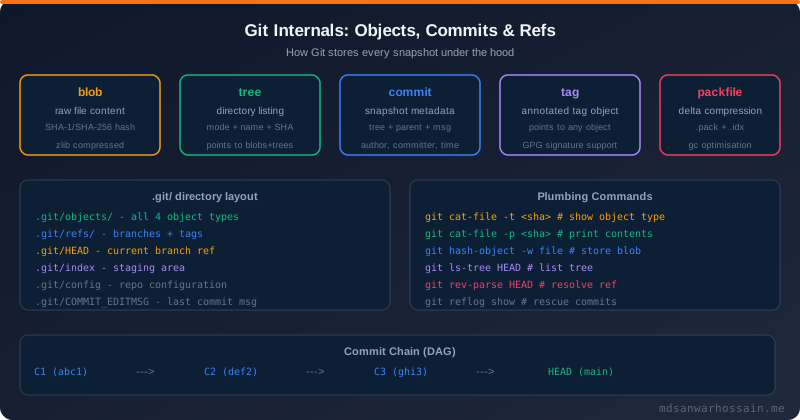
TL;DR — Key Insight
"Git is fundamentally a content-addressable key-value store. Every piece of data — file contents, directory listings, commit metadata — is stored as an immutable object identified by the SHA-1 (or SHA-256) hash of its content. Branches and tags are nothing more than simple text files containing a hash. Once you see this, every git command makes perfect sense."
Table of Contents
- The Git Object Model: Four Types
- Blob Objects — Storing File Content
- Tree Objects — Representing Directories
- Commit Objects — Snapshots with Metadata
- Tag Objects — Annotated vs Lightweight
- Refs, Branches & HEAD Explained
- The .git Directory: A Complete Tour
- Plumbing Commands: Inspecting Objects
- Packfiles and Delta Compression
- The Reflog, Garbage Collection & Object Lifecycle
- The Commit DAG: How Merges & Rebases Work Internally
- Practical Uses: Debugging, Recovery & Forensics
1. The Git Object Model: Four Types
Git's entire data model is built on four object types, all stored in the .git/objects/ directory. Each object is content-addressable: its filename is the SHA-1 hash of its content. This means identical content is automatically deduplicated — two files with the same content share one blob object no matter how many commits reference them.
The four types form a directed acyclic graph (DAG) where:
- blob — stores raw file content (no filename, no metadata)
- tree — stores a directory listing (mode + name + SHA for each entry)
- commit — stores a snapshot pointer (tree SHA + parent SHA(s) + author + message)
- tag — stores an annotated tag (points to any object, typically a commit)
Objects are immutable once created. You can never modify a git object — only create new ones. This immutability is what makes Git so reliable as a version control system and enables distributed operation: any clone has all the information needed to verify integrity via hashes.
SHA-1 vs SHA-256 in 2026
Git historically used SHA-1, but since Git 2.29 (2020) it supports SHA-256 via git init --object-format=sha256. GitHub and most hosts still default to SHA-1. The transition is gradual — SHA-1 is not yet cryptographically broken for Git's use case (second-preimage resistance is what matters, not collision resistance), but SHA-256 repos are the future. Object hashes are 40 hex chars (SHA-1) or 64 hex chars (SHA-256).
2. Blob Objects — Storing File Content
A blob (Binary Large Object) stores the raw content of a file. Crucially, a blob contains no filename and no permissions — those are stored in the tree that references the blob. This is how Git achieves deduplication: rename a file and Git creates no new blob; only the tree changes.
How Git Computes a Blob SHA
Git computes a blob hash by prepending a header to the content, then SHA-1 hashing the result:
# Git blob format: "blob <content-length>\0<content>"
# For a file containing "hello\n" (6 bytes):
header = "blob 6\0"
sha = sha1(header + "hello\n")
# Result: ce013625030ba8dba906f756967f9e9ca394464a

# Verify with git's own plumbing:
$ echo "hello" | git hash-object --stdin
ce013625030ba8dba906f756967f9e9ca394464a

# Store it in the object database:
$ echo "hello" | git hash-object -w --stdin
ce013625030ba8dba906f756967f9e9ca394464a

# The file is now at .git/objects/ce/013625...
# First two hex chars = directory name, rest = filename
Blob Storage on Disk
Each blob is stored as a zlib-deflate compressed file at .git/objects/<first-2-hex>/<remaining-38-hex>. A repo with 10,000 unique file versions creates 10,000 loose objects. Git periodically runs git gc to pack these into packfiles for efficient storage and transfer. The raw on-disk representation is:
- Type:
blob - Size: content length in bytes (ASCII decimal)
- Null byte separator
- Raw content bytes
- Entire buffer zlib-compressed
This format means you can compute any Git hash independently without the git binary — it is just standard SHA-1 over a well-known byte format. This portability is intentional and enables third-party tools and language bindings (libgit2, JGit, go-git) to interoperate perfectly.
3. Tree Objects — Representing Directories
A tree is Git's representation of a directory. Each entry in a tree contains three fields: a file mode, a name, and the SHA-1 of the object it points to (either a blob or a nested tree). Trees can be nested arbitrarily deep to represent any filesystem hierarchy.
# Read a tree object:
$ git ls-tree HEAD
100644 blob a8c9b58... README.md
100644 blob 3f7e1a2... pom.xml
040000 tree d9e2f3b... src
040000 tree 1a2b3c4... test

# File modes:
# 100644 - regular file
# 100755 - executable file
# 120000 - symbolic link
# 040000 - directory (tree)
# 160000 - gitlink (submodule commit)

# Recursively list:
$ git ls-tree -r HEAD
$ git ls-tree -r --name-only HEAD  # filenames only

# View a specific subtree:
$ git ls-tree HEAD:src/main/java
Why Trees Enable Efficient Snapshots
When you modify a single file deep in a directory tree, Git only creates new objects for the changed blob and every tree on the path from root to that blob. All unchanged subtrees are reused by pointing to existing tree objects. A commit touching one file out of ten thousand creates at most O(depth) new objects — typically 3-5 for a typical project structure. This is why Git snapshots are dramatically more space-efficient than naive full-copy-per-commit approaches.
Tree hashing also means that any two commits whose root tree has the same SHA represent exactly identical repository states — regardless of their metadata. This property enables powerful operations like git stash, worktrees, and efficient merge detection.
4. Commit Objects — Snapshots with Metadata
A commit object is the central concept in Git history. It contains:
- tree — SHA of the root tree object (the complete repo snapshot)
- parent — SHA(s) of parent commit(s); zero for initial commit, two+ for merge commits
- author — name, email, and Unix timestamp with timezone of who wrote the change
- committer — name, email, and timestamp of who applied the commit (differs from author on cherry-picked/rebased commits)
- commit message — free-form text, conventionally subject line + body
# Read a commit object in full:
$ git cat-file -p HEAD
tree 4b825dc642cb6eb9a060e54bf8d69288fbee4904
parent 7d3c8f9e1a2b4d5e6f7a8b9c0d1e2f3a4b5c6d7
author Jane Smith <jane@example.com> 1712563200 +0600
committer Jane Smith <jane@example.com> 1712563200 +0600

feat(auth): add JWT refresh token rotation

Implements sliding-window refresh token rotation per RFC 6749.
Resolves: #423

# Author vs Committer:
# After rebase: author = original developer, committer = you
# After cherry-pick: author preserved, committer = you

# View the commit object type:
$ git cat-file -t HEAD
commit
Commit Identity and Signing
Because a commit SHA covers all its fields (tree, parent, author, message), any change to any field creates a completely new SHA. This is why rebasing (which replays commits with new parent/timestamp) produces new SHAs even when the diffs are identical. It is also why amending a commit changes its SHA — and therefore invalidates all child commits that reference it. This cascade is what makes rewriting shared history dangerous.
GPG-signed commits add a PGP signature block at the end of the commit object. Signed commits prove the identity of the committer and that the commit has not been tampered with — critical for supply chain security. GitHub displays a "Verified" badge for commits signed with a registered GPG key or an SSH key.
# Configure commit signing globally:
$ git config --global user.signingkey <your-gpg-key-id>
$ git config --global commit.gpgsign true

# Or use SSH signing (simpler, GitHub supports since 2022):
$ git config --global gpg.format ssh
$ git config --global user.signingkey ~/.ssh/id_ed25519.pub

# Verify a signed commit:
$ git verify-commit HEAD
gpg: Good signature from "Jane Smith <jane@example.com>"
5. Tag Objects — Annotated vs Lightweight
Git has two kinds of tags, and understanding the difference matters for release workflows:
| Property | Lightweight Tag | Annotated Tag |
|---|---|---|
| Storage | Just a ref file (pointer) | Full tag object in .git/objects |
| Metadata | None (no tagger, no date) | Tagger, date, message |
| GPG signing | Not possible | Yes (git tag -s) |
| git describe | Ignored by default | Used for version strings |
| Use for | Personal bookmarks, CI markers | Official releases (v1.0.0) |
# Create lightweight tag (just a pointer):
$ git tag v1.0.0-rc1

# Create annotated tag (full object):
$ git tag -a v1.0.0 -m "Release 1.0.0: stable API, Java 21"

# Create signed annotated tag:
$ git tag -s v1.0.0 -m "Release 1.0.0"

# Push tags (not pushed by default):
$ git push origin --tags          # all tags
$ git push origin v1.0.0          # specific tag

# Delete remote tag:
$ git push origin :refs/tags/v1.0.0-rc1
6. Refs, Branches & HEAD Explained
A branch in Git is nothing more than a text file containing a 40-character commit SHA. That is it. There is no "branch object" — just a ref. When you commit on a branch, Git writes the new commit SHA into that file. Branches are cheap and disposable because creating one creates a single 41-byte file.
Ref Hierarchy in .git/refs/
.git/refs/
├── heads/          # local branches
│   ├── main        # contains: abc123...
│   └── feature/login
├── remotes/        # remote tracking branches
│   └── origin/
│       ├── main
│       └── HEAD
└── tags/           # local tags
    ├── v1.0.0      # lightweight: commit SHA
    └── v1.1.0      # annotated: tag object SHA

# HEAD is a special ref:
$ cat .git/HEAD
ref: refs/heads/main       # normal: symbolic ref

# In "detached HEAD" state:
$ cat .git/HEAD
7d3c8f9e1a2b4d5e6f7a8b9c0d1e2f3a4b5c6d7  # direct SHA

# Resolve any ref to a commit SHA:
$ git rev-parse HEAD
$ git rev-parse main
$ git rev-parse v1.0.0^{commit}   # dereference tag to commit
Packed Refs
Repos with thousands of tags or remote-tracking branches store refs in .git/packed-refs instead of individual files for filesystem performance. When you run git pack-refs --all, all loose refs are folded into this file. Git always checks loose refs first, then packed-refs, so the resolution order is deterministic.
7. The .git Directory: A Complete Tour
Understanding every file in .git/ removes the mystery from Git's behavior:
| Path | Purpose | Notes |
|---|---|---|
| objects/ | All blob/tree/commit/tag objects | Split 2+38 hex chars |
| objects/pack/ | .pack and .idx packfiles | Created by git gc |
| refs/ | Branch, tag, remote ref files | heads/ + tags/ + remotes/ |
| HEAD | Current branch symbolic ref | Direct SHA in detached HEAD |
| index | Staging area (binary file) | Tracks next commit's tree |
| config | Repo-level git configuration | Overrides ~/.gitconfig |
| logs/ | Reflog entries per ref | Basis for git reflog |
| COMMIT_EDITMSG | Last commit message draft | Used by editor hook |
| MERGE_HEAD | SHA of branch being merged | Present only mid-merge |
| hooks/ | Client-side hook scripts | pre-commit, commit-msg, etc. |
8. Plumbing Commands: Inspecting Objects
Git exposes low-level "plumbing" commands that operate directly on objects and refs. The porcelain commands (git commit, git merge) are high-level wrappers around these. Learning plumbing commands lets you inspect and repair any git state.
Essential Plumbing Command Reference
# --- Object inspection ---
$ git cat-file -t <sha>         # show object type: blob/tree/commit/tag
$ git cat-file -p <sha>         # pretty-print object contents
$ git cat-file -s <sha>         # show object size in bytes

# --- Object creation ---
$ git hash-object -w file.txt   # store file as blob, print SHA
$ git mktree < tree-entries     # create a tree object from stdin
$ git commit-tree <tree-sha>    # create a commit from tree + parent

# --- Ref resolution ---
$ git rev-parse HEAD            # resolve to commit SHA
$ git rev-parse HEAD~2          # two commits back
$ git rev-parse HEAD^2          # second parent (merge commit)
$ git rev-parse main@{3.days.ago}  # time-based ref

# --- Tree walking ---
$ git ls-tree -r HEAD           # list all blobs in HEAD tree recursively
$ git ls-files                  # list index (staging area) contents
$ git ls-files --others         # untracked files

# --- Diff at object level ---
$ git diff-tree -r HEAD~1 HEAD  # diff two commits at object level
$ git diff-index HEAD           # diff index vs HEAD

# --- Merge base ---
$ git merge-base main feature/login  # find common ancestor
Building a Commit from Scratch (Manual)
To truly understand Git, walk through creating a commit entirely with plumbing commands:
# 1. Create a blob
$ echo "Hello, Git internals!" | git hash-object -w --stdin
# Output: 8ab686eafeb1f44702738c8b0f24f2567c36da6d (example)
BLOB_SHA=8ab686eafeb1f44702738c8b0f24f2567c36da6d

# 2. Create a tree referencing the blob
$ printf "100644 README.md\0$(echo -n $BLOB_SHA | xxd -r -p)" | \
  git hash-object -w --stdin -t tree
# Easier: update-index + write-tree
$ git update-index --add --cacheinfo 100644,$BLOB_SHA,README.md
$ TREE_SHA=$(git write-tree)

# 3. Create a commit referencing the tree
$ COMMIT_SHA=$(git commit-tree $TREE_SHA -m "Initial commit via plumbing")

# 4. Update a branch to point to the new commit
$ git update-ref refs/heads/manual-branch $COMMIT_SHA

# Now "manual-branch" is a fully valid Git branch!
9. Packfiles and Delta Compression
Loose objects (one file per object) work well for small repos, but a large project with years of history might have millions of objects. Git periodically packs them into packfiles using delta compression — storing only the differences between similar objects, not full copies.
How Delta Compression Works
When creating a packfile, Git finds pairs of similar objects (typically successive versions of the same file) and stores the newer version as a delta against the base. The delta format is a sequence of copy and insert instructions. Key properties:
- Depth limit: delta chains are limited to 50 levels deep to bound decompression cost
- Heuristic matching: Git uses filename and size similarity, not object type, to find delta candidates
- Compression ratio: A repository with 1000 versions of a large file may shrink 20-50x vs loose objects
- Pack index (.idx): Alongside each .pack file is an .idx index that maps SHA → byte offset in the .pack for O(log n) lookup
# Trigger packing manually:
$ git gc                         # standard maintenance
$ git gc --aggressive            # deeper delta searching (slower)
$ git repack -adf                # full repack, remove redundant

# Inspect pack contents:
$ git verify-pack -v .git/objects/pack/*.idx | sort -k3 -n | tail -20
# Shows largest objects by size (useful for finding bloat)

# Count objects:
$ git count-objects -vH
# count: 0
# size: 0
# in-pack: 52,847
# packs: 2
# size-pack: 48.32 MiB

# Prune unreachable objects (e.g., after filter-repo):
$ git prune --expire=now
$ git gc --prune=now
Finding and Removing Large Files from History
Accidentally committed a 500 MB binary? Understanding packfiles helps you find and remove it efficiently:
# Find the 10 largest blobs in history:
$ git rev-list --objects --all | \
  git cat-file --batch-check='%(objecttype) %(objectname) %(objectsize) %(rest)' | \
  grep blob | sort -k3 -rn | head -10

# Remove with git-filter-repo (modern replacement for filter-branch):
$ pip install git-filter-repo
$ git filter-repo --path large-file.psd --invert-paths

# After rewriting, force push and notify all cloners:
$ git push origin --force --all
$ git push origin --force --tags
10. The Reflog, Garbage Collection & Object Lifecycle
The reflog is a local log of every position HEAD (and each branch tip) has been at. It is your safety net for recovering from destructive operations like accidental resets, branch deletes, and bad rebases.
# Show reflog for HEAD:
$ git reflog
abc1234 HEAD@{0}: commit: feat: add payment gateway
def5678 HEAD@{1}: rebase (finish): returning to refs/heads/main
ghi9012 HEAD@{2}: reset: moving to HEAD~1
jkl3456 HEAD@{3}: commit: WIP: draft payment module

# Recover a commit deleted by an accidental reset:
$ git checkout -b recovery HEAD@{3}
# Or cherry-pick it:
$ git cherry-pick jkl3456

# Reflog for a specific branch:
$ git reflog show feature/payment

# Reflog expiry (default 90 days for reachable, 30 for unreachable):
$ git config gc.reflogExpire 180       # keep 6 months
$ git config gc.reflogExpireUnreachable 60  # unreachable objects
Object Lifecycle and Garbage Collection
An object becomes unreachable when no ref (branch, tag, or reflog entry) points to it or to a commit in its history. Unreachable objects are candidates for garbage collection. git gc runs automatically after certain operations (e.g., after 6,700+ loose objects accumulate). The lifecycle:
- Newly created: loose object in
.git/objects/xx/yy... - After gc: packed into a .pack file, loose copy deleted
- After becoming unreachable: stays for reflogExpireUnreachable duration (default 30 days)
- After grace period: pruned by
git pruneorgit gc --prune - In a bare server repo: objects referenced by any clone are never pruned (server reflog usually disabled)
11. The Commit DAG: How Merges & Rebases Work Internally
Git's commit history is a Directed Acyclic Graph (DAG). Each commit points to its parent(s). Most commits have one parent; merge commits have two or more. This DAG structure is what enables powerful history manipulation.
Three-Way Merge Internals
When you run git merge feature, Git performs:
- Step 1 — Find merge base:
git merge-base HEAD feature— the most recent common ancestor commit - Step 2 — Compute diffs: diff(base → HEAD) and diff(base → feature) for every file
- Step 3 — Apply changes: non-overlapping changes applied automatically; overlapping changes become conflicts
- Step 4 — Create merge commit: new commit with two parents (HEAD and feature tip)
A fast-forward merge happens when the current branch is directly behind the target — no divergence means no need for a merge commit. Git simply moves the branch pointer forward. You can suppress fast-forward with git merge --no-ff to always create a merge commit for historical clarity.
Rebase Internals: Replaying Patches
Rebase (git rebase main) replays each commit in your branch as a new commit on top of the new base. Internally, for each commit C in the branch:
- Compute diff(C's parent → C)
- Apply that diff on top of the current tip of the base branch
- Create a new commit object with the new tree, the base tip as parent, but the original author/message
- Advance the branch pointer to the new commit
Because commit SHAs depend on parent SHAs, every rebased commit gets a new SHA even if the diff is identical. This is why you must --force-push after rebasing a remote branch — the old SHAs no longer exist in the local history.
12. Practical Uses: Debugging, Recovery & Forensics
Git internals knowledge pays off in real situations. Here are the most valuable practical applications:
Scenario 1: Recover a Force-Pushed Branch
# Someone force-pushed over your work — recover with reflog:
$ git reflog show origin/main  # check remote tracking reflog
$ git branch recovery origin/main@{1}  # branch from previous state

# Or if you have local commits not yet pushed:
$ git reflog | grep "before push"
$ git reset --hard HEAD@{N}
Scenario 2: Find When a Bug Was Introduced
# Find the commit that changed a specific line:
$ git log -S "OrderService.processPayment" --all  # pickaxe search
$ git log -G "processPayment\(.*amount" --all      # regex pickaxe

# Blame with ignore whitespace and find original commit:
$ git blame -w -C -C -C -- src/OrderService.java
# -C -C -C traces code moved across files, not just within

# Show what a file looked like at a specific commit:
$ git show abc123:src/OrderService.java
Scenario 3: Verify Repository Integrity
# Check for corruption:
$ git fsck --full
# Dangling objects are normal (old reflog entries)
# "missing blob" or "broken link" = actual corruption

# Verify all objects:
$ git fsck --no-dangling --strict

# Clone verification (every fetch does this automatically):
$ git clone --mirror source-repo.git  # bare mirror clone
$ git -C source-repo.git fsck --full
Git Internals Mastery Checklist
- ✅ You can explain what happens on disk for every common git command
- ✅ You understand why force-pushing rewrites history and when it is safe
- ✅ You can recover lost commits using
git reflogafter any destructive operation - ✅ You know the difference between annotated and lightweight tags and when to use each
- ✅ You can use
git cat-fileandgit ls-treeto inspect any repository state - ✅ You understand why two commits with the same diff can have different SHAs
- ✅ You can find and remove large files accidentally committed to history
- ✅ You know how garbage collection works and when to run
git gcmanually
Leave a Comment
Related Posts
Advanced Git: Interactive Rebase, Cherry-Pick & Bisect
Master Git's power-user commands to rewrite history, port commits, and find regressions fast.
Git Branching Strategies: GitFlow vs GitHub Flow vs Trunk-Based
Choose the right branching strategy for your team's CI/CD pipeline and release cadence.
Scaling Git: Monorepos, LFS, Sparse Checkout & Worktrees
Handle large repos and monorepos efficiently with sparse checkout, Git LFS, and worktrees.