Scaling Git: Monorepos, LFS, Sparse Checkout & Worktrees — Complete Guide 2026
When a repository grows to gigabytes of history, thousands of files, or dozens of collaborating teams, standard git clone and CI pipelines break down. The techniques in this guide — sparse checkout, partial clone, Git LFS, worktrees, and monorepo tooling — let you scale Git to any size without sacrificing developer velocity.
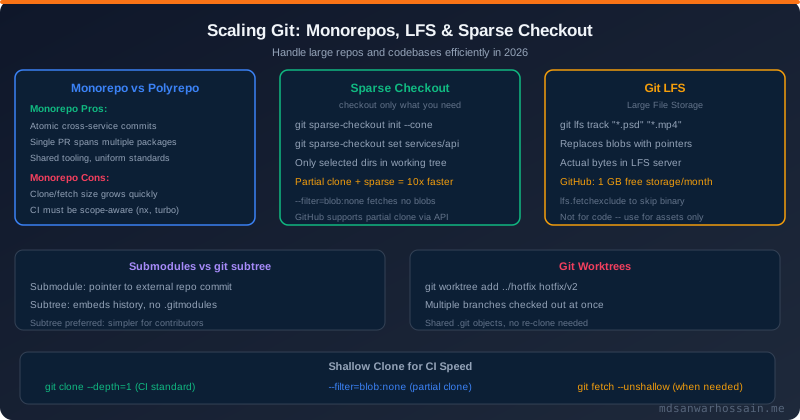
TL;DR — Decision Rules for Large Repos
"For a large monorepo: use sparse checkout + partial clone to make individual checkouts fast. For binary assets: use Git LFS to keep history lean. For dependent repos: prefer git subtree over submodules for simpler contributor experience. For parallel branch work: use git worktree instead of cloning twice. For CI: always use --depth=1 unless full history is required."
Table of Contents
- Monorepo vs Polyrepo: Complete Trade-off Analysis
- Sparse Checkout: Check Out Only What You Need
- Partial Clone and Shallow Clone for CI Speed
- Git LFS: Storing Large Binary Files
- Git Submodules: Managing Dependencies Between Repos
- Git Subtree: Embedding Repos Without .gitmodules
- Submodules vs Subtree: Decision Guide
- Git Worktrees: Multiple Branches Simultaneously
- Monorepo CI/CD: Scope-Aware Builds with nx, Turborepo
- git filter-repo: History Rewriting at Scale
- Performance Checklist for Large Repos
1. Monorepo vs Polyrepo: Complete Trade-off Analysis
The monorepo vs polyrepo decision shapes your entire engineering workflow. Both patterns have serious practitioners: Google, Meta, and Microsoft use monorepos; Netflix, Amazon, and most startups use polyrepos. Neither is universally correct.
| Dimension | Monorepo | Polyrepo |
|---|---|---|
| Cross-service changes | Single atomic commit | Multiple PRs, coordination cost |
| Dependency management | Shared dep versions, no drift | Version drift possible |
| Repo size | Grows quickly; needs sparse checkout | Small, fast clone |
| CI/CD complexity | Must be scope-aware (nx, turbo, Bazel) | Each repo builds independently |
| Code reuse | Trivial — local imports | Shared library publishing required |
| Team autonomy | Shared standards, less autonomy | Full autonomy per team |
| Refactoring | Global rename in one PR | Requires coordinated cross-repo PRs |
Practical recommendation for 2026: Start with a polyrepo for small teams (< 20 engineers). Consider a monorepo when you have: more than 3 tightly coupled services, frequent cross-service changes, or a platform team owning shared libraries used across all services. The tooling (nx, Turborepo, Bazel) has matured enough to make monorepos practical at medium scale.
2. Sparse Checkout: Check Out Only What You Need
Sparse checkout lets you clone a repository but only populate the working tree with files matching specific path patterns. For a 50-service monorepo, a developer working on the order-service need not check out the other 49 services.
# Method 1: Clone with sparse checkout from the start (recommended):
$ git clone --no-checkout --filter=blob:none \
    https://github.com/org/monorepo.git
$ cd monorepo
$ git sparse-checkout init --cone
$ git sparse-checkout set services/order-service shared/common-lib
$ git checkout main  # only populates matching directories

# Method 2: Enable on existing checkout:
$ git sparse-checkout init --cone
$ git sparse-checkout set services/order-service

# View current sparse patterns:
$ git sparse-checkout list

# Add more paths:
$ git sparse-checkout add services/payment-service

# Disable sparse checkout (check out everything):
$ git sparse-checkout disable

# Non-cone mode (supports glob patterns, but slower):
$ git sparse-checkout init
$ git sparse-checkout set '/*' '!/services/legacy-*'  # exclude legacy services
Cone vs Non-Cone Mode
Cone mode (recommended) restricts checkout to complete directory trees specified by path prefixes. It is faster because Git can use hash-based directory matching without scanning every path. Non-cone mode supports arbitrary glob patterns but is 10-100x slower on large repos because Git must evaluate every file against every pattern.
3. Partial Clone and Shallow Clone for CI Speed
Partial clone and shallow clone are distinct but complementary techniques for reducing the amount of data transferred during git clone and git fetch:
| Technique | What It Skips | Use Case | Caveats |
|---|---|---|---|
| Shallow clone (--depth) | Old commit history | CI builds, Docker builds | No full history for blame/log |
| Partial clone (--filter=blob:none) | Blob content (deferred download) | Monorepos, sparse checkout | Blobs fetched on demand |
| --filter=tree:0 | All tree objects except HEAD | Blobless + treeless clone | Slowest on first access |
# Standard CI shallow clone (GitHub Actions default):
$ git clone --depth=1 https://github.com/org/repo.git

# Blobless partial clone (keeps all history, no file content until needed):
$ git clone --filter=blob:none https://github.com/org/monorepo.git
# Benefit: full commit history available for git log, git bisect
# Blobs downloaded on checkout / git show

# Treeless partial clone (most aggressive):
$ git clone --filter=tree:0 https://github.com/org/monorepo.git

# Combine blobless + sparse for monorepos:
$ git clone --filter=blob:none --no-checkout https://github.com/org/monorepo.git
$ cd monorepo
$ git sparse-checkout init --cone
$ git sparse-checkout set services/order-service
$ git checkout main

# Convert shallow to full history when needed (e.g., for git bisect):
$ git fetch --unshallow

# GitHub Actions: use actions/checkout with depth:
- uses: actions/checkout@v4
  with:
    fetch-depth: 0      # full history (for semantic-release, git log --all)
    # OR:
    fetch-depth: 1      # shallow (default) for simple builds
4. Git LFS: Storing Large Binary Files
Git is designed for text. Committing large binary files (images, videos, ML models, compiled binaries) bloats the object database because every version is stored in full — there is no efficient delta compression for binary data. Git Large File Storage (LFS) solves this by replacing large files with small pointer files in the repository, storing the actual content on a separate LFS server.
# Install git-lfs (macOS/Linux):
$ brew install git-lfs   # macOS
$ apt install git-lfs    # Debian/Ubuntu
$ git lfs install        # configure hooks in ~/.gitconfig

# Track file types (writes to .gitattributes):
$ git lfs track "*.psd"
$ git lfs track "*.mp4"
$ git lfs track "*.bin"
$ git lfs track "models/*.onnx"   # ML models

# .gitattributes after tracking:
# *.psd filter=lfs diff=lfs merge=lfs -text
# *.mp4 filter=lfs diff=lfs merge=lfs -text

# Commit normally — LFS handles transparently:
$ git add design/logo.psd
$ git commit -m "Add brand logo PSD"
$ git push origin main
# The .psd blob is uploaded to LFS server; a pointer is committed to Git

# View tracked LFS files:
$ git lfs ls-files

# Check LFS status:
$ git lfs status

# Fetch LFS objects (after shallow clone):
$ git lfs fetch
$ git lfs checkout  # replace pointers with actual files

# Exclude LFS downloads when you don't need the files:
$ GIT_LFS_SKIP_SMUDGE=1 git clone https://github.com/org/repo.git
# Leaves LFS pointers in place; git lfs checkout specific files as needed
Git LFS Storage Limits and Costs
| GitHub Plan | Free LFS Storage | Free Bandwidth | Overage |
|---|---|---|---|
| Free | 1 GB | 1 GB/month | $0.07/GB storage, $0.0875/GB bandwidth |
| Teams | 50 GB | 50 GB/month | Data packs: $5 for 50 GB storage + 50 GB BW |
| Enterprise | Negotiated | Negotiated | Enterprise agreement |
LFS best practices: Only track binary assets that change frequently. Static assets (fonts, icons) may be fine in the repo directly. For ML models (>100 MB), consider storing in S3/GCS and referencing by hash instead of LFS — better for large teams with high bandwidth requirements.
5. Git Submodules: Managing Dependencies Between Repos
A submodule records a reference to a specific commit in another repository. The parent repo stores the submodule's URL and the exact commit SHA it should be at — a pointer, not a copy.
# Add a submodule:
$ git submodule add https://github.com/org/shared-lib.git libs/shared
$ git commit -m "chore: add shared-lib as submodule"
# Creates: .gitmodules file + libs/shared/ (gitlink entry)

# Clone a repo with submodules:
$ git clone --recurse-submodules https://github.com/org/main-app.git
# Or after a plain clone:
$ git submodule update --init --recursive

# Update all submodules to their latest tracked commits:
$ git submodule update --remote --merge

# Update a specific submodule:
$ git submodule update --remote libs/shared

# View submodule status:
$ git submodule status

# Run a command in every submodule:
$ git submodule foreach 'git pull origin main'

# Remove a submodule (multi-step):
$ git submodule deinit libs/shared
$ git rm libs/shared
$ rm -rf .git/modules/libs/shared
$ git commit -m "chore: remove shared-lib submodule"
Common Submodule Pitfalls
- Forgetting to push submodule changes: Push the submodule first, then the parent. Teammates get "fatal: repository not found" if you push the parent pointing to an unpushed submodule commit.
- Detached HEAD in submodule: Submodules always check out in detached HEAD state at the recorded commit. To work on a submodule, explicitly
cdinto it and checkout a branch. - Old submodule pointer after pull: After
git pull, rungit submodule update --init --recursiveto sync. Setsubmodule.recurse=truein gitconfig to automate.
6. Git Subtree: Embedding Repos Without .gitmodules
Git subtree is an alternative to submodules that embeds another repository's history directly into a subdirectory of your repo. Unlike submodules, contributors do not need any special knowledge or extra setup commands — the subdirectory looks like any other directory to casual contributors.
# Add a remote and squash its history into a prefix:
$ git remote add shared-lib https://github.com/org/shared-lib.git
$ git subtree add --prefix=libs/shared shared-lib main --squash
# --squash: collapses history into one commit (cleaner parent log)

# Pull updates from the remote library:
$ git subtree pull --prefix=libs/shared shared-lib main --squash

# Push local changes back to the library repo:
$ git subtree push --prefix=libs/shared shared-lib main

# Split a subdirectory into a standalone repo (inverse operation):
$ git subtree split --prefix=libs/shared -b split/shared-lib
# Creates branch split/shared-lib with only libs/shared history
$ git push https://github.com/org/new-shared-lib.git split/shared-lib:main
7. Submodules vs Subtree: Decision Guide
| Criterion | Submodules | Subtree |
|---|---|---|
| Contributor onboarding | Extra: git submodule update | Transparent, no extra commands |
| Upstream syncing | Precise commit pointer | Merge required; can diverge |
| Pushing changes upstream | Push submodule separately | git subtree push directly |
| History included | Not in parent repo | Included (unless --squash) |
| Recommended for | Exact pinning; infra teams | Open-source; infrequent sync |
Recommendation: For most teams, subtree with --squash is easier to manage. Use submodules only when you need precise pinning to a specific commit with explicit upgrade control (e.g., a compiled SDK or security-critical library).
8. Git Worktrees: Multiple Branches Simultaneously
Git worktrees let you check out multiple branches simultaneously into separate directories, all sharing the same .git directory and object database. This eliminates the need to maintain multiple clones of the same repository for parallel work — ideal for reviewing a colleague's PR while working on your own feature, or for applying a hotfix without stashing in-progress work.
# Create a worktree for a hotfix (in sibling directory):
$ git worktree add ../order-service-hotfix hotfix/CVE-2026-1234
$ cd ../order-service-hotfix
# This directory has the hotfix branch checked out.
# Your original directory still has your feature branch.
# Both share the same .git objects — no duplicate history.

# Create a worktree for a new branch:
$ git worktree add -b feature/new-feature ../order-service-feature

# List all worktrees:
$ git worktree list
/home/jane/order-service         abc1234 [feature/payment]
/home/jane/order-service-hotfix  def5678 [hotfix/CVE-2026-1234]

# Lock a worktree (prevent pruning if the path is on a removable drive):
$ git worktree lock ../order-service-hotfix --reason "USB drive"

# Remove a worktree:
$ git worktree remove ../order-service-hotfix
$ git worktree prune   # clean up stale worktree references
Worktree Rules
- One branch per worktree: A branch can only be checked out in one worktree at a time. Attempting to check out the same branch in two worktrees fails.
- Shared objects: New commits in any worktree are immediately visible in all others via the shared object database.
- Separate index and HEAD: Each worktree has its own index and HEAD file; staging in one does not affect others.
- gc runs on the main worktree: Running
git gcfrom any worktree affects the shared objects for all worktrees.
9. Monorepo CI/CD: Scope-Aware Builds with nx and Turborepo
The biggest CI challenge in a monorepo is rebuilding everything on every commit. Scope-aware build tools detect which projects are affected by a change using the dependency graph.
# Nx (Angular, React, Node, Java support):
$ npx nx affected:build --base=origin/main
$ npx nx affected:test --base=origin/main
# Only builds/tests projects that changed or depend on changed code

# Turborepo (Node/JS focused):
$ npx turbo run build --filter=[origin/main...]
$ npx turbo run test --filter=order-service...  # order-service + its deps

# GitHub Actions integration with Nx:
jobs:
  affected:
    runs-on: ubuntu-latest
    outputs:
      services: ${{ steps.affected.outputs.services }}
    steps:
      - uses: actions/checkout@v4
        with:
          fetch-depth: 0   # nx needs full history for base comparison
      - run: |
          AFFECTED=$(npx nx show projects --affected --base=origin/main | \
            grep '^services/' | tr '\n' ',')
          echo "services=$AFFECTED" >> $GITHUB_OUTPUT
10. git filter-repo: History Rewriting at Scale
git filter-repo is the modern replacement for the deprecated git filter-branch. It is orders of magnitude faster and the recommended tool for rewriting repository history at scale — including splitting a monorepo into multiple polyrepos, removing sensitive files, and extracting a subdirectory into its own repo.
# Install:
$ pip install git-filter-repo

# Remove all history of a sensitive file:
$ git filter-repo --path secrets.properties --invert-paths

# Extract a subdirectory as a standalone repo:
$ git filter-repo --subdirectory-filter services/order-service
# Result: the repo now contains only order-service history

# Remove all files except a specific service:
$ git filter-repo --path services/payment-service/

# Rename a directory across all history:
$ git filter-repo --path-rename old-name/:new-name/

# Remove large files > 10 MB from history:
$ git filter-repo --strip-blobs-bigger-than 10M

# After filter-repo, push changes:
$ git remote add origin https://github.com/org/new-repo.git
$ git push origin --force --all --tags
11. Performance Checklist for Large Repos
- ✅ CI: Use
--depth=1for all CI clones not needing full history; use--filter=blob:nonefor history-browsing jobs - ✅ Monorepo: Enable sparse checkout with cone mode; combine with
--filter=blob:nonepartial clone - ✅ Binary assets: Track all non-text assets (>100 KB) with Git LFS; never commit compiled binaries
- ✅ Large objects in history: Run
git verify-pack -v | sort -k3 -n | tail -20periodically to find bloat - ✅ Parallel work: Use worktrees instead of maintaining multiple clones
- ✅ Repo maintenance: Run
git maintenance startto enable automatic background gc, fetch, and commit-graph updates - ✅ Commit graph:
git commit-graph write --reachabledramatically speeds upgit log,git merge-baseon large repos - ✅ File system monitor: Enable
git config core.fsmonitor trueto speed upgit statuson large working trees
Leave a Comment
Related Posts
Git Internals: Objects, Commits & Refs
Deep dive into blob, tree, commit, and tag objects — how Git stores everything under the hood.
Git Branching Strategies 2026
GitFlow vs GitHub Flow vs Trunk-Based Development: choose the right strategy for your team.
GitHub Actions Advanced: Reusable Workflows & OIDC
Master reusable workflows, composite actions, and OIDC keyless authentication.