Spring Boot on AWS ECS & EKS: Deployment, Secrets & Auto Scaling Guide
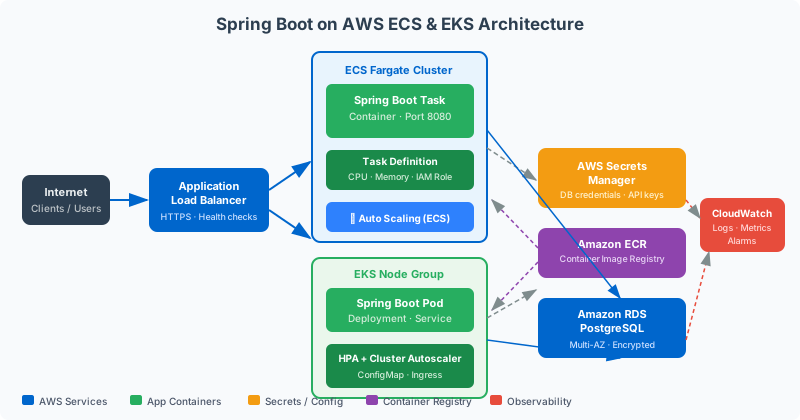
Running Spring Boot on AWS requires navigating two fundamentally different container orchestration models: ECS Fargate, which trades control for simplicity, and EKS, which trades simplicity for maximum control. Getting secrets, autoscaling, and health probes right in either environment is the difference between a resilient production service and an on-call nightmare. This guide covers the complete deployment pipeline — from multi-stage Dockerfile through ECR, ECS task definitions, Secrets Manager injection, ALB configuration, and KEDA-based autoscaling on EKS.
TL;DR
"Complete guide to deploying Spring Boot on AWS ECS Fargate and EKS. Covers task definitions, secrets injection from AWS Secrets Manager, ALB target."
Table of Contents
- ECS Fargate vs EKS: Choosing the Right AWS Container Platform
- Containerizing Spring Boot for AWS: Multi-Stage Dockerfile & ECR Push
- ECS Task Definition & Service Configuration
- Secrets Management: AWS Secrets Manager + Spring Boot
- Application Load Balancer & Target Group Configuration
- Auto Scaling: ECS Service Auto Scaling & KEDA for EKS
- EKS Deployment: Helm Charts & Horizontal Pod Autoscaler
- Production Observability: CloudWatch, X-Ray & Spring Actuator
ECS Fargate vs EKS: Choosing the Right AWS Container Platform
The choice between ECS Fargate and EKS is not primarily a technical question — it is an organizational question about where you want to spend operational capital. ECS Fargate removes the control plane entirely from your operational responsibility. AWS manages scheduling, cluster scaling, EC2 fleet management, and Kubernetes API server availability. You define a task, a service, and a desired count, and AWS handles the rest. EKS, in contrast, gives you a Kubernetes control plane managed by AWS — the etcd, API server, and controller manager are AWS-managed — but you own the data plane: the EC2 nodes or Fargate profiles, the node groups, the CNI plugin, the cluster add-ons.
For teams deploying fewer than 20 microservices with standard HTTP/REST communication patterns and no specialized Kubernetes tooling requirements, ECS Fargate consistently wins on operational overhead. You eliminate node management, Kubernetes version upgrades, cluster add-on lifecycle management, and the cognitive overhead of kubectl debugging. ECS capacity provider strategies automatically right-size Fargate capacity without managing node pools or cluster autoscalers. Deployment complexity is substantially lower: an ECS service update is a single API call; an EKS rolling update involves managing pod disruption budgets, node drains, and rollout strategies.
EKS earns its operational overhead when your platform needs capabilities that ECS cannot match. Custom operators for stateful workload management (Kafka clusters, Elasticsearch, Redis Sentinel), advanced traffic management via service mesh (Istio, Linkerd), KEDA-based event-driven autoscaling from SQS queue depth or Kafka consumer lag, multi-cluster federation, or GitOps workflows with ArgoCD — these are native Kubernetes capabilities that ECS either cannot support or requires significant workarounds to approximate. If your engineering organization already has Kubernetes expertise from on-premises infrastructure, EKS allows you to bring existing tooling, knowledge, and operational procedures to AWS.
The following comparison table captures the key operational dimensions that should drive your decision:
A pragmatic migration path many organizations follow is ECS Fargate first, EKS later. Start on ECS Fargate to validate your containerized Spring Boot application, establish CI/CD pipelines, and build operational familiarity with AWS container infrastructure. Once your platform grows to where Kubernetes-specific tooling provides measurable ROI — typically when you need KEDA for event-driven scaling, Istio for mTLS service mesh, or custom operators for stateful services — migrate incrementally to EKS. The Docker image and ECR repository remain identical between the two platforms; only the deployment manifests change.
Cost considerations deserve explicit attention. ECS Fargate tasks are priced at $0.04048 per vCPU-hour and $0.004445 per GB-hour. A Spring Boot service running 2 vCPU / 4 GB with 3 tasks costs approximately $0.32/hr — around $230/month for a single service. At ten services, you are at $2,300/month just for compute. EKS with three m6i.xlarge Reserved Instances (4 vCPU, 16 GB each) at $0.0864/hr gives you 12 vCPU / 48 GB for $187/month plus the $73/month cluster fee — meaningfully cheaper once you have enough services to fill the nodes. The break-even point where EKS becomes cheaper than Fargate is typically around 5–8 services running continuously.
Containerizing Spring Boot for AWS: Multi-Stage Dockerfile & ECR Push
A production-quality Spring Boot container image for AWS requires careful attention to image size, build reproducibility, JVM startup optimization, and security. A multi-stage Dockerfile separates the build environment (which includes Maven, the full JDK, and build tooling) from the runtime image (which should contain only the JRE and application artifacts). This reduces production image size from typically 800 MB+ (full JDK + Maven) to 200–300 MB (slim JRE + JAR or layered extraction).
Spring Boot's layered JAR feature, available since Spring Boot 2.3, enables Docker layer caching that dramatically speeds up CI/CD pipeline image builds. Instead of copying a single monolithic JAR (which invalidates cache on any code change), layered JARs extract into four layers ordered by change frequency: application classes (changes every commit), Spring Boot loader (rarely changes), snapshot dependencies (changes when SNAPSHOT versions change), and release dependencies (changes when pom.xml changes). On a typical CI pipeline where only application classes change between commits, the dependencies layer — which is the largest — is served entirely from cache, reducing image push time from 90+ seconds to under 15 seconds.
# ── Stage 1: Build ──────────────────────────────────────────────────────────
FROM eclipse-temurin:21-jdk-jammy AS builder

WORKDIR /build

# Cache dependency layer: copy pom.xml first
COPY pom.xml .
COPY .mvn/ .mvn/
COPY mvnw .
RUN ./mvnw dependency:go-offline -q

# Copy source and build
COPY src/ src/
RUN ./mvnw package -DskipTests -q

# Extract Spring Boot layered JAR
RUN java -Djarmode=layertools -jar target/*.jar extract --destination /build/extracted

# ── Stage 2: Runtime ─────────────────────────────────────────────────────────
FROM eclipse-temurin:21-jre-jammy AS runtime

# Non-root user for security (ECS task and EKS pod run as UID 1001)
RUN groupadd --gid 1001 appgroup && \
    useradd --uid 1001 --gid appgroup --shell /bin/false --create-home appuser

WORKDIR /app

# Copy layers in order of change frequency (least to most frequent)
COPY --from=builder /build/extracted/dependencies/ ./
COPY --from=builder /build/extracted/spring-boot-loader/ ./
COPY --from=builder /build/extracted/snapshot-dependencies/ ./
COPY --from=builder /build/extracted/application/ ./

# JVM flags optimized for containers
ENV JAVA_OPTS="-XX:+UseContainerSupport \
               -XX:MaxRAMPercentage=75.0 \
               -XX:InitialRAMPercentage=50.0 \
               -XX:+UseZGC \
               -XX:+ZGenerational \
               -Djava.security.egd=file:/dev/./urandom \
               -Dspring.profiles.active=prod"

USER appuser
EXPOSE 8080

HEALTHCHECK --interval=30s --timeout=5s --start-period=60s --retries=3 \
    CMD curl -f http://localhost:8080/actuator/health/liveness || exit 1

ENTRYPOINT ["sh", "-c", "exec java $JAVA_OPTS org.springframework.boot.loader.launch.JarLauncher"]
The JVM flags deserve explanation. -XX:+UseContainerSupport (enabled by default since JDK 10) ensures the JVM reads CPU and memory limits from container cgroups rather than the host OS, preventing the JVM from seeing all 96 GB of the EC2 host when it is limited to 4 GB by the container. -XX:MaxRAMPercentage=75.0 reserves 25% of container memory for off-heap usage (OS page cache, direct buffers, native libraries). Setting this too high causes OOM kills because the JVM heap fills the container limit with no room for off-heap allocations. -XX:+UseZGC -XX:+ZGenerational selects ZGC with generational mode (Java 21+) for sub-millisecond GC pauses, which is essential for latency-sensitive REST APIs.
After building locally, push to Amazon ECR. Create the repository once and push on every CI/CD pipeline run:
# Authenticate Docker to ECR (replace account ID and region)
aws ecr get-login-password --region ap-southeast-1 | \
  docker login --username AWS \
    --password-stdin 123456789012.dkr.ecr.ap-southeast-1.amazonaws.com

# Create ECR repository (one-time setup)
aws ecr create-repository \
  --repository-name my-spring-boot-service \
  --region ap-southeast-1 \
  --image-scanning-configuration scanOnPush=true \
  --encryption-configuration encryptionType=AES256

# Build and tag
docker build --target runtime -t my-spring-boot-service:${GIT_SHA} .
docker tag my-spring-boot-service:${GIT_SHA} \
  123456789012.dkr.ecr.ap-southeast-1.amazonaws.com/my-spring-boot-service:${GIT_SHA}

# Push
docker push \
  123456789012.dkr.ecr.ap-southeast-1.amazonaws.com/my-spring-boot-service:${GIT_SHA}

# Also tag as latest for reference (use immutable SHA tags in production deployments)
docker tag my-spring-boot-service:${GIT_SHA} \
  123456789012.dkr.ecr.ap-southeast-1.amazonaws.com/my-spring-boot-service:latest
docker push \
  123456789012.dkr.ecr.ap-southeast-1.amazonaws.com/my-spring-boot-service:latest
Enable scanOnPush=true on every ECR repository. ECR's integrated vulnerability scanning (powered by Clair) runs automatically on each push, providing a CVE report in the ECR console and via aws ecr describe-image-scan-findings. Integrate this into your CI pipeline: after the push, poll the scan results and fail the pipeline if any CRITICAL severity CVEs are found in the runtime image layers. Using eclipse-temurin:21-jre-jammy (Ubuntu 22.04 slim) instead of the full JDK image eliminates roughly 80% of potential CVE surface area compared to a full JDK base image.
ECS Task Definition & Service Configuration
The ECS task definition is the fundamental deployment unit — equivalent to a Kubernetes pod spec combined with resource requests. It specifies the container image, CPU and memory limits, networking mode, IAM role, environment variables, secret references, health check parameters, and logging configuration. For Spring Boot services, the awsvpc networking mode is mandatory: it assigns each task its own Elastic Network Interface with a dedicated private IP, enabling fine-grained security group control at the task level and clean ALB target group registration.
A production-grade ECS task definition for a Spring Boot service requires two IAM roles. The task execution role (used by the ECS agent to pull images from ECR and retrieve secrets from Secrets Manager) needs ecr:GetAuthorizationToken, ecr:BatchGetImage, ecr:GetDownloadUrlForLayer, and secretsmanager:GetSecretValue. The task role (assumed by your Spring Boot application at runtime) needs whatever AWS permissions your application code uses — DynamoDB access, S3 read, SQS send — but explicitly not secret retrieval permissions; secrets are injected as environment variables by the ECS agent before your application starts.
{
  "family": "my-spring-boot-service",
  "networkMode": "awsvpc",
  "requiresCompatibilities": ["FARGATE"],
  "cpu": "1024",
  "memory": "2048",
  "executionRoleArn": "arn:aws:iam::123456789012:role/ecsTaskExecutionRole",
  "taskRoleArn": "arn:aws:iam::123456789012:role/my-spring-boot-service-task-role",
  "containerDefinitions": [
    {
      "name": "app",
      "image": "123456789012.dkr.ecr.ap-southeast-1.amazonaws.com/my-spring-boot-service:v1.4.2",
      "essential": true,
      "portMappings": [
        {
          "containerPort": 8080,
          "protocol": "tcp",
          "name": "http"
        }
      ],
      "environment": [
        { "name": "SPRING_PROFILES_ACTIVE", "value": "prod" },
        { "name": "SERVER_PORT", "value": "8080" },
        { "name": "MANAGEMENT_SERVER_PORT", "value": "8081" }
      ],
      "secrets": [
        {
          "name": "DB_URL",
          "valueFrom": "arn:aws:secretsmanager:ap-southeast-1:123456789012:secret:prod/myservice/db:url::"
        },
        {
          "name": "DB_USERNAME",
          "valueFrom": "arn:aws:secretsmanager:ap-southeast-1:123456789012:secret:prod/myservice/db:username::"
        },
        {
          "name": "DB_PASSWORD",
          "valueFrom": "arn:aws:secretsmanager:ap-southeast-1:123456789012:secret:prod/myservice/db:password::"
        },
        {
          "name": "JWT_SECRET",
          "valueFrom": "arn:aws:secretsmanager:ap-southeast-1:123456789012:secret:prod/myservice/jwt:secret::"
        }
      ],
      "healthCheck": {
        "command": [
          "CMD-SHELL",
          "curl -f http://localhost:8081/actuator/health/liveness || exit 1"
        ],
        "interval": 30,
        "timeout": 5,
        "retries": 3,
        "startPeriod": 60
      },
      "logConfiguration": {
        "logDriver": "awslogs",
        "options": {
          "awslogs-group": "/ecs/my-spring-boot-service",
          "awslogs-region": "ap-southeast-1",
          "awslogs-stream-prefix": "ecs",
          "awslogs-create-group": "true",
          "mode": "non-blocking",
          "max-buffer-size": "25m"
        }
      },
      "stopTimeout": 30,
      "linuxParameters": {
        "initProcessEnabled": true
      }
    }
  ]
}
Several configuration details in this task definition deserve emphasis. The secrets array uses ARN-based references with a JSON key path suffix (e.g., :url::). When a Secrets Manager secret stores a JSON object containing multiple key-value pairs, ECS can extract individual keys — a single secret ARN prod/myservice/db can contain all database credentials as a JSON object, and each field is injected as a separate environment variable. This avoids creating one secret per credential, which has cost implications (Secrets Manager charges $0.40 per secret per month). A single JSON secret containing all credentials for a service costs $0.40 total rather than $0.40 × N credentials.
The stopTimeout: 30 field gives the Spring Boot application 30 seconds to finish in-flight requests when ECS sends a SIGTERM (during service updates or scale-in events). Configure Spring Boot to honor this with server.shutdown=graceful and spring.lifecycle.timeout-per-shutdown-phase=25s in your application-prod.yml — 25 seconds gives the application time to drain connections while leaving 5 seconds for the JVM to exit cleanly before ECS force-kills with SIGKILL. Missing this causes in-flight HTTP requests to be abruptly terminated during every deployment.
Setting mode: non-blocking on the awslogs driver prevents log I/O from blocking application threads when the CloudWatch Logs service is temporarily unavailable. With the default blocking mode, a 10-second CloudWatch Logs API timeout causes all application threads that generate log output to block for 10 seconds — effectively stalling the entire application. Non-blocking mode drops log lines when the buffer (max-buffer-size: 25m) is full, which is far preferable to stalling request processing.
After registering the task definition, create the ECS service with the appropriate deployment configuration:
aws ecs create-service \
  --cluster prod-cluster \
  --service-name my-spring-boot-service \
  --task-definition my-spring-boot-service:3 \
  --desired-count 3 \
  --launch-type FARGATE \
  --network-configuration "awsvpcConfiguration={
    subnets=[subnet-0a1b2c3d,subnet-0e4f5g6h],
    securityGroups=[sg-0123456789abcdef0],
    assignPublicIp=DISABLED
  }" \
  --load-balancers "targetGroupArn=arn:aws:elasticloadbalancing:ap-southeast-1:123456789012:targetgroup/my-service-tg/abcdef1234567890,containerName=app,containerPort=8080" \
  --deployment-configuration "minimumHealthyPercent=100,maximumPercent=200,deploymentCircuitBreaker={enable=true,rollback=true}" \
  --health-check-grace-period-seconds 90 \
  --enable-execute-command \
  --region ap-southeast-1
The deploymentCircuitBreaker with rollback=true is a critical safety net for production deployments. When enabled, ECS monitors the rolling deployment and automatically rolls back to the previous task definition revision if the new tasks fail to reach a healthy state within the deployment circuit breaker evaluation window. Without this, a bad deployment that causes tasks to crash-loop (due to a misconfigured environment variable or a failed startup) can take your service to zero healthy tasks before you notice and manually intervene. The circuit breaker detects the crash loop and reverts within minutes.
Secrets Management: AWS Secrets Manager + Spring Boot
Embedding secrets as environment variables in your task definition or Kubernetes deployment YAML is a security anti-pattern. Even with IAM-controlled access to ECR and deployment artifacts, a developer with read access to ECS task definitions or Kubernetes ConfigMaps can extract production database passwords. AWS Secrets Manager provides a single, audited store for all sensitive configuration with automatic rotation, fine-grained IAM policies, and a complete access audit trail in CloudTrail.
For ECS Fargate, the cleanest integration is the native secrets injection shown in the task definition above: ECS resolves secret ARNs at task start time and injects values as environment variables before your application container starts. Spring Boot reads these through its standard Environment abstraction with no additional dependencies required. The advantage is simplicity; the limitation is that secrets are only resolved at task start — to pick up a rotated secret value, you must restart your tasks (ECS provides an API to force a new deployment, which rolls tasks with the new secret values).
For applications that need dynamic secret rotation without task restarts — common for database credential rotation using Secrets Manager's RDS rotation lambda — use the AWS Secrets Manager Spring Boot starter, which provides @Value binding with optional cache refresh:
<!-- pom.xml dependency -->
<dependency>
    <groupId>io.awspring.cloud</groupId>
    <artifactId>spring-cloud-aws-secrets-manager</artifactId>
    <version>3.2.1</version>
</dependency>
# application-prod.yml
spring:
  config:
    import:
      - "aws-secretsmanager:/prod/myservice/db"
      - "aws-secretsmanager:/prod/myservice/jwt"
      - "aws-secretsmanager:/prod/myservice/redis"

  datasource:
    url: ${db.url}
    username: ${db.username}
    password: ${db.password}
    hikari:
      maximum-pool-size: 20
      minimum-idle: 5
      connection-timeout: 30000
      idle-timeout: 600000
      max-lifetime: 1800000

  data:
    redis:
      host: ${redis.host}
      port: ${redis.port}
      password: ${redis.auth-token}
      ssl:
        enabled: true

app:
  security:
    jwt-secret: ${jwt.secret}
    jwt-expiration-ms: 3600000

# Spring Boot Actuator — separate port so ALB health checks don't expose metrics
management:
  server:
    port: 8081
  endpoints:
    web:
      exposure:
        include: health,info,metrics,prometheus
  endpoint:
    health:
      probes:
        enabled: true
      show-details: always
      group:
        liveness:
          include: livenessState,diskSpace
        readiness:
          include: readinessState,db,redis

server:
  shutdown: graceful
spring:
  lifecycle:
    timeout-per-shutdown-phase: 25s
The spring.config.import with aws-secretsmanager: prefix instructs Spring Cloud AWS to load the secret as a property source. The secret /prod/myservice/db should be a JSON object in Secrets Manager: {"url":"jdbc:postgresql://...","username":"svc_myservice","password":"..."}. Each JSON key becomes a Spring property accessible as ${db.url}, ${db.username}, etc. This pattern allows a single secret to carry all related credentials for a subsystem, minimizing both the number of Secrets Manager API calls and the monthly cost per secret.
Create secrets using the AWS CLI with JSON structure:
# Create database credentials secret
aws secretsmanager create-secret \
  --name prod/myservice/db \
  --description "Production database credentials for my-spring-boot-service" \
  --secret-string '{
    "url": "jdbc:postgresql://prod-db.cluster-xyz.ap-southeast-1.rds.amazonaws.com:5432/mydb",
    "username": "svc_myservice",
    "password": "r@ndomStr0ngPassw0rd!"
  }' \
  --region ap-southeast-1

# Enable automatic rotation using built-in RDS rotation lambda
aws secretsmanager rotate-secret \
  --secret-id prod/myservice/db \
  --rotation-lambda-arn arn:aws:lambda:ap-southeast-1:123456789012:function:SecretsManagerRDSPostgreSQLRotationSingleUser \
  --rotation-rules AutomaticallyAfterDays=30 \
  --region ap-southeast-1

# Grant task execution role permission to read the secret
aws secretsmanager put-resource-policy \
  --secret-id prod/myservice/db \
  --resource-policy '{
    "Version": "2012-10-17",
    "Statement": [{
      "Effect": "Allow",
      "Principal": {
        "AWS": "arn:aws:iam::123456789012:role/ecsTaskExecutionRole"
      },
      "Action": "secretsmanager:GetSecretValue",
      "Resource": "*"
    }]
  }' \
  --region ap-southeast-1
For EKS, the recommended approach is the External Secrets Operator (ESO), which syncs Secrets Manager secrets into native Kubernetes Secrets that Spring Boot reads through standard volume mounts or environment variables. ESO uses IRSA (IAM Roles for Service Accounts) to assume an IAM role with secretsmanager:GetSecretValue permission scoped to specific secret ARNs. This follows the principle of least privilege: only pods in the specific ServiceAccount can access the secret, not all pods in the namespace.
Application Load Balancer & Target Group Configuration
The Application Load Balancer sits in front of your ECS service or EKS ingress, terminating HTTPS, routing based on host/path rules, and performing health checks against your Spring Boot application's Actuator endpoints. Correct ALB and target group configuration is critical: a misconfigured health check threshold causes ECS tasks to be continuously deregistered and replaced, creating a deployment loop; a wrong deregistration delay causes in-flight requests to fail during deployments.
Create the target group with parameters tuned for Spring Boot applications:
# Create target group for the ECS service (IP target type for awsvpc networking)
aws elbv2 create-target-group \
  --name my-spring-boot-service-tg \
  --protocol HTTP \
  --port 8080 \
  --vpc-id vpc-0abcdef1234567890 \
  --target-type ip \
  --health-check-protocol HTTP \
  --health-check-port 8081 \
  --health-check-path /actuator/health/readiness \
  --health-check-interval-seconds 15 \
  --health-check-timeout-seconds 5 \
  --healthy-threshold-count 2 \
  --unhealthy-threshold-count 3 \
  --matcher HttpCode=200 \
  --region ap-southeast-1

# Modify deregistration delay to allow graceful shutdown (match stopTimeout)
aws elbv2 modify-target-group-attributes \
  --target-group-arn arn:aws:elasticloadbalancing:ap-southeast-1:123456789012:targetgroup/my-spring-boot-service-tg/abcdef1234567890 \
  --attributes Key=deregistration_delay.timeout_seconds,Value=30 \
              Key=load_balancing.algorithm.type,Value=least_outstanding_requests \
  --region ap-southeast-1
The health check targets /actuator/health/readiness on port 8081 (the management port, separate from the application port 8080). This is intentional: the readiness probe checks application-level health — database connectivity, Redis connectivity, any custom health indicators — and reports UNHEALTHY if any dependency is unavailable. The ALB uses this to stop routing new requests to tasks that cannot serve them. The liveness probe (/actuator/health/liveness) is used by ECS's container health check and by Kubernetes readiness probes to determine whether a container should be restarted.
Separating management from application ports prevents ALB health check traffic from appearing in your application access logs and prevents health check path crawlers from reaching your application endpoints. Configure Spring Boot with management.server.port=8081 and ensure your ECS task security group allows the ALB security group to reach port 8081 in addition to port 8080. A common misconfiguration is allowing only port 8080 in the task security group, causing all ALB health checks to time out and every task to be marked unhealthy immediately after registration.
The deregistration_delay.timeout_seconds=30 must match your stopTimeout in the task definition. When ECS begins replacing a task during a deployment, the ALB starts the deregistration countdown while simultaneously sending SIGTERM to the container. During the deregistration period, the ALB stops sending new connections to the task but allows existing connections to complete. After 30 seconds, the ALB force-closes remaining connections. If deregistration_delay is shorter than stopTimeout, the ALB drops connections that Spring Boot is still processing gracefully — defeating the purpose of graceful shutdown. If it is longer, tasks wait unnecessarily after draining connections.
Auto Scaling: ECS Service Auto Scaling & KEDA for EKS
ECS Service Auto Scaling uses Application Auto Scaling to adjust the ECS service's desiredCount based on CloudWatch metrics. The most reliable scaling targets for Spring Boot are CPU utilization (scale out at 70%, scale in at 40%) and ALB request count per target. CPU-based scaling responds to compute-bound workloads (CPU-intensive JSON processing, encryption), while request count scaling responds to I/O-bound workloads where CPU may remain low but request queue depth is growing.
# Register ECS service as a scalable target
aws application-autoscaling register-scalable-target \
  --service-namespace ecs \
  --scalable-dimension ecs:service:DesiredCount \
  --resource-id service/prod-cluster/my-spring-boot-service \
  --min-capacity 2 \
  --max-capacity 20 \
  --region ap-southeast-1

# CPU utilization target tracking policy
aws application-autoscaling put-scaling-policy \
  --service-namespace ecs \
  --scalable-dimension ecs:service:DesiredCount \
  --resource-id service/prod-cluster/my-spring-boot-service \
  --policy-name cpu-target-tracking \
  --policy-type TargetTrackingScaling \
  --target-tracking-scaling-policy-configuration '{
    "TargetValue": 70.0,
    "PredefinedMetricSpecification": {
      "PredefinedMetricType": "ECSServiceAverageCPUUtilization"
    },
    "ScaleOutCooldown": 60,
    "ScaleInCooldown": 300,
    "DisableScaleIn": false
  }' \
  --region ap-southeast-1

# ALB request count per target tracking policy
aws application-autoscaling put-scaling-policy \
  --service-namespace ecs \
  --scalable-dimension ecs:service:DesiredCount \
  --resource-id service/prod-cluster/my-spring-boot-service \
  --policy-name alb-requests-target-tracking \
  --policy-type TargetTrackingScaling \
  --target-tracking-scaling-policy-configuration '{
    "TargetValue": 1000.0,
    "CustomizedMetricSpecification": {
      "MetricName": "RequestCountPerTarget",
      "Namespace": "AWS/ApplicationELB",
      "Dimensions": [
        {
          "Name": "TargetGroup",
          "Value": "targetgroup/my-spring-boot-service-tg/abcdef1234567890"
        }
      ],
      "Statistic": "Sum",
      "Unit": "Count"
    },
    "ScaleOutCooldown": 60,
    "ScaleInCooldown": 300
  }' \
  --region ap-southeast-1
The asymmetric cooldown periods — 60 seconds for scale-out, 300 seconds for scale-in — reflect the asymmetric risk profile of scaling decisions. Scale-out should happen quickly to handle traffic spikes before they cause latency degradation; a 60-second cooldown allows continuous scale-out in 60-second increments during sustained load increase. Scale-in should be conservative to avoid thrashing: scaling in too aggressively during a brief traffic lull, then scaling out again 5 minutes later, wastes the ECS task startup time (typically 45–90 seconds for Spring Boot containers to reach a healthy state, including JVM startup and Spring context initialization).
For EKS, KEDA (Kubernetes Event-Driven Autoscaling) extends HPA with event-source scalers that go far beyond CPU and memory metrics. A KEDA SQS scaler measures the queue depth of an SQS queue and scales pods proportionally — when 10,000 messages are waiting in an order processing queue, KEDA can scale the consumer deployment from 3 pods to 50 pods within seconds. A KEDA Kafka scaler measures consumer group lag and scales pods to maintain a target lag threshold. These event-driven scaling behaviors are impossible with standard HPA and are a primary reason to choose EKS over ECS for message-driven workloads.
# Install KEDA via Helm
helm repo add kedacore https://kedacore.github.io/charts
helm repo update
helm install keda kedacore/keda \
  --namespace keda \
  --create-namespace \
  --version 2.13.0 \
  --set serviceAccount.annotations."eks\.amazonaws\.com/role-arn"=arn:aws:iam::123456789012:role/keda-operator-role
EKS Deployment: Helm Charts & Horizontal Pod Autoscaler
Helm is the de facto package manager for Kubernetes, providing templated manifests with environment-specific value overrides. A Spring Boot microservice Helm chart should parameterize the image repository and tag, resource requests and limits, replica count, environment variables, HPA configuration, ingress rules, and service account annotations — everything that changes between development, staging, and production environments. Hard-coding any of these into the chart templates forces chart changes for routine deployments, defeating the purpose of templating.
A production-quality Kubernetes deployment manifest for a Spring Boot service on EKS, rendered from Helm templates:
apiVersion: apps/v1
kind: Deployment
metadata:
  name: my-spring-boot-service
  namespace: production
  labels:
    app: my-spring-boot-service
    version: v1.4.2
    app.kubernetes.io/managed-by: Helm
spec:
  replicas: 3
  selector:
    matchLabels:
      app: my-spring-boot-service
  strategy:
    type: RollingUpdate
    rollingUpdate:
      maxUnavailable: 0
      maxSurge: 1
  template:
    metadata:
      labels:
        app: my-spring-boot-service
        version: v1.4.2
      annotations:
        prometheus.io/scrape: "true"
        prometheus.io/port: "8081"
        prometheus.io/path: "/actuator/prometheus"
    spec:
      serviceAccountName: my-spring-boot-service-sa
      terminationGracePeriodSeconds: 60
      topologySpreadConstraints:
        - maxSkew: 1
          topologyKey: topology.kubernetes.io/zone
          whenUnsatisfiable: DoNotSchedule
          labelSelector:
            matchLabels:
              app: my-spring-boot-service
      containers:
        - name: app
          image: 123456789012.dkr.ecr.ap-southeast-1.amazonaws.com/my-spring-boot-service:v1.4.2
          imagePullPolicy: IfNotPresent
          ports:
            - name: http
              containerPort: 8080
              protocol: TCP
            - name: management
              containerPort: 8081
              protocol: TCP
          env:
            - name: SPRING_PROFILES_ACTIVE
              value: "prod"
            - name: SERVER_PORT
              value: "8080"
            - name: MANAGEMENT_SERVER_PORT
              value: "8081"
            - name: JAVA_OPTS
              value: >-
                -XX:+UseContainerSupport
                -XX:MaxRAMPercentage=75.0
                -XX:+UseZGC
                -XX:+ZGenerational
          envFrom:
            - secretRef:
                name: my-spring-boot-service-secrets
          resources:
            requests:
              cpu: "500m"
              memory: "1Gi"
            limits:
              cpu: "2000m"
              memory: "2Gi"
          livenessProbe:
            httpGet:
              path: /actuator/health/liveness
              port: 8081
            initialDelaySeconds: 60
            periodSeconds: 30
            timeoutSeconds: 5
            failureThreshold: 3
          readinessProbe:
            httpGet:
              path: /actuator/health/readiness
              port: 8081
            initialDelaySeconds: 30
            periodSeconds: 15
            timeoutSeconds: 5
            failureThreshold: 3
          startupProbe:
            httpGet:
              path: /actuator/health/liveness
              port: 8081
            initialDelaySeconds: 20
            periodSeconds: 10
            timeoutSeconds: 5
            failureThreshold: 12
          lifecycle:
            preStop:
              exec:
                command: ["sh", "-c", "sleep 5"]
          securityContext:
            runAsNonRoot: true
            runAsUser: 1001
            runAsGroup: 1001
            readOnlyRootFilesystem: true
            allowPrivilegeEscalation: false
            capabilities:
              drop: ["ALL"]
      affinity:
        podAntiAffinity:
          preferredDuringSchedulingIgnoredDuringExecution:
            - weight: 100
              podAffinityTerm:
                labelSelector:
                  matchLabels:
                    app: my-spring-boot-service
                topologyKey: kubernetes.io/hostname
---
apiVersion: v1
kind: Service
metadata:
  name: my-spring-boot-service
  namespace: production
  annotations:
    service.beta.kubernetes.io/aws-load-balancer-type: "external"
    service.beta.kubernetes.io/aws-load-balancer-nlb-target-type: "ip"
spec:
  selector:
    app: my-spring-boot-service
  ports:
    - name: http
      port: 80
      targetPort: 8080
      protocol: TCP
  type: ClusterIP
---
apiVersion: autoscaling/v2
kind: HorizontalPodAutoscaler
metadata:
  name: my-spring-boot-service-hpa
  namespace: production
spec:
  scaleTargetRef:
    apiVersion: apps/v1
    kind: Deployment
    name: my-spring-boot-service
  minReplicas: 3
  maxReplicas: 30
  metrics:
    - type: Resource
      resource:
        name: cpu
        target:
          type: Utilization
          averageUtilization: 70
    - type: Resource
      resource:
        name: memory
        target:
          type: Utilization
          averageUtilization: 80
  behavior:
    scaleUp:
      stabilizationWindowSeconds: 30
      policies:
        - type: Pods
          value: 4
          periodSeconds: 60
    scaleDown:
      stabilizationWindowSeconds: 300
      policies:
        - type: Pods
          value: 2
          periodSeconds: 60
The startup probe deserves special attention. Spring Boot applications with Flyway migrations, complex Spring context initialization, or warm-up queries can take 30–90 seconds to become ready. Without a startup probe, Kubernetes uses the liveness probe from the first second of container startup — if the Spring context isn't initialized yet, the liveness probe fails and Kubernetes restarts the container, creating a crash loop that never lets the application start. The startup probe with failureThreshold: 12 and periodSeconds: 10 gives the application 120 seconds to start before liveness monitoring begins, while the liveness probe immediately takes over once the startup probe succeeds.
The preStop: sleep 5 hook introduces a 5-second delay before Kubernetes sends SIGTERM to the container. This compensates for the race condition between Kubernetes removing the pod from the service endpoints (which happens concurrently with SIGTERM, not before it) and the load balancer finishing its health check update cycle. Without this sleep, the load balancer may still be routing requests to a pod that has already begun shutting down, causing a brief surge of 502 errors during rolling deployments. Five seconds is typically sufficient for the AWS Load Balancer Controller to deregister the pod from the target group before the application begins rejecting connections.
The topologySpreadConstraints ensure pods are distributed evenly across availability zones, ensuring that an AZ failure does not take down all replicas simultaneously. Combined with podAntiAffinity preferred scheduling on different nodes, this configuration provides both AZ fault tolerance and node-level failure isolation for the three-replica minimum configuration.
Production Observability: CloudWatch, X-Ray & Spring Actuator
Observability for Spring Boot on AWS requires instrumenting three signals: metrics (CloudWatch or Prometheus/Grafana), distributed traces (AWS X-Ray or OpenTelemetry), and structured logs (CloudWatch Logs with JSON format for efficient querying via CloudWatch Logs Insights). Spring Boot Actuator provides the foundation for all three signals, and the AWS SDK for Spring adds native CloudWatch and X-Ray integration.
Configure Spring Boot Actuator with Micrometer and AWS CloudWatch for metrics export. Add the following dependencies to your pom.xml:
<!-- Spring Boot Actuator -->
<dependency>
    <groupId>org.springframework.boot</groupId>
    <artifactId>spring-boot-starter-actuator</artifactId>
</dependency>

<!-- Micrometer CloudWatch registry -->
<dependency>
    <groupId>io.micrometer</groupId>
    <artifactId>micrometer-registry-cloudwatch2</artifactId>
</dependency>

<!-- Micrometer Prometheus registry (for EKS + Prometheus scraping) -->
<dependency>
    <groupId>io.micrometer</groupId>
    <artifactId>micrometer-registry-prometheus</artifactId>
</dependency>

<!-- AWS X-Ray Spring Boot auto-configuration -->
<dependency>
    <groupId>io.awspring.cloud</groupId>
    <artifactId>spring-cloud-aws-starter-xray</artifactId>
    <version>3.2.1</version>
</dependency>

<!-- Structured logging with Logback JSON encoder -->
<dependency>
    <groupId>net.logstash.logback</groupId>
    <artifactId>logstash-logback-encoder</artifactId>
    <version>7.4</version>
</dependency>
# application-prod.yml (observability section)
management:
  metrics:
    export:
      cloudwatch:
        enabled: true
        namespace: MySpringBootService/Production
        batch-size: 20
        step: 1m
      prometheus:
        enabled: true
    tags:
      application: my-spring-boot-service
      environment: production
      region: ${AWS_DEFAULT_REGION:ap-southeast-1}
    distribution:
      percentiles-histogram:
        http.server.requests: true
      percentiles:
        http.server.requests: 0.5, 0.75, 0.95, 0.99, 0.999
      slo:
        http.server.requests: 100ms, 250ms, 500ms, 1000ms, 2500ms

  tracing:
    enabled: true
    sampling:
      probability: 0.1   # 10% trace sampling in production

# X-Ray configuration
aws:
  xray:
    daemon-address: "127.0.0.1:2000"
    sampling:
      fixed-target: 1
      rate: 0.05
The percentile histograms and SLO buckets for http.server.requests generate the full latency distribution in CloudWatch. Without percentile histograms, you only get averages — which are useless for latency SLO monitoring. A service with P50 = 50ms and P99 = 5000ms has an average of perhaps 100ms, completely hiding the fact that 1% of users are experiencing 5-second responses. CloudWatch alarms on P99 latency exceeding your SLO threshold catch these tail latency regressions before they affect enough users to show up in business metrics.
For distributed tracing on EKS, deploy the AWS Distro for OpenTelemetry (ADOT) Collector as a DaemonSet. This receives trace data from your Spring Boot applications via the OTLP protocol and forwards to AWS X-Ray, giving you end-to-end trace visibility across service boundaries. Configure the X-Ray daemon sidecar in ECS task definitions to receive UDP trace segments from the Spring Boot application running in the same task network namespace.
CloudWatch Logs Insights enables powerful structured log analysis. Configure Logback with the logstash-logback-encoder to output JSON lines including trace IDs, which allows correlating a specific X-Ray trace with its log output in CloudWatch Logs Insights — a capability that transforms debugging distributed failures from guesswork to precise root cause identification. Use a query like: fields @timestamp, level, message, traceId | filter traceId = "1-abcdef12-34567890abcdef1234567890" | sort @timestamp to see all log lines across all service instances that participated in a specific request trace.
Leave a Comment
Related Posts

Software Engineer · Java · Spring Boot · Microservices